


How to set up a Nexo account
Setting up a personal Nexo account is easy and takes only a few minutes. Before you begin, note that you must be at least 18 years of age to register. Follow our step-by-step guide below to get started.
If you are interested in creating a corporate Nexo account, please visit the dedicated article.
You can also download the Nexo app to access your account on the go. This article provides information about the system requirements, available Play Stores, and instructions for downloading the app.
1. How to open a personal Nexo account
Via the web platform
1. Go to https://platform.nexo.com/register.
2. Enter your email address and click Continue.
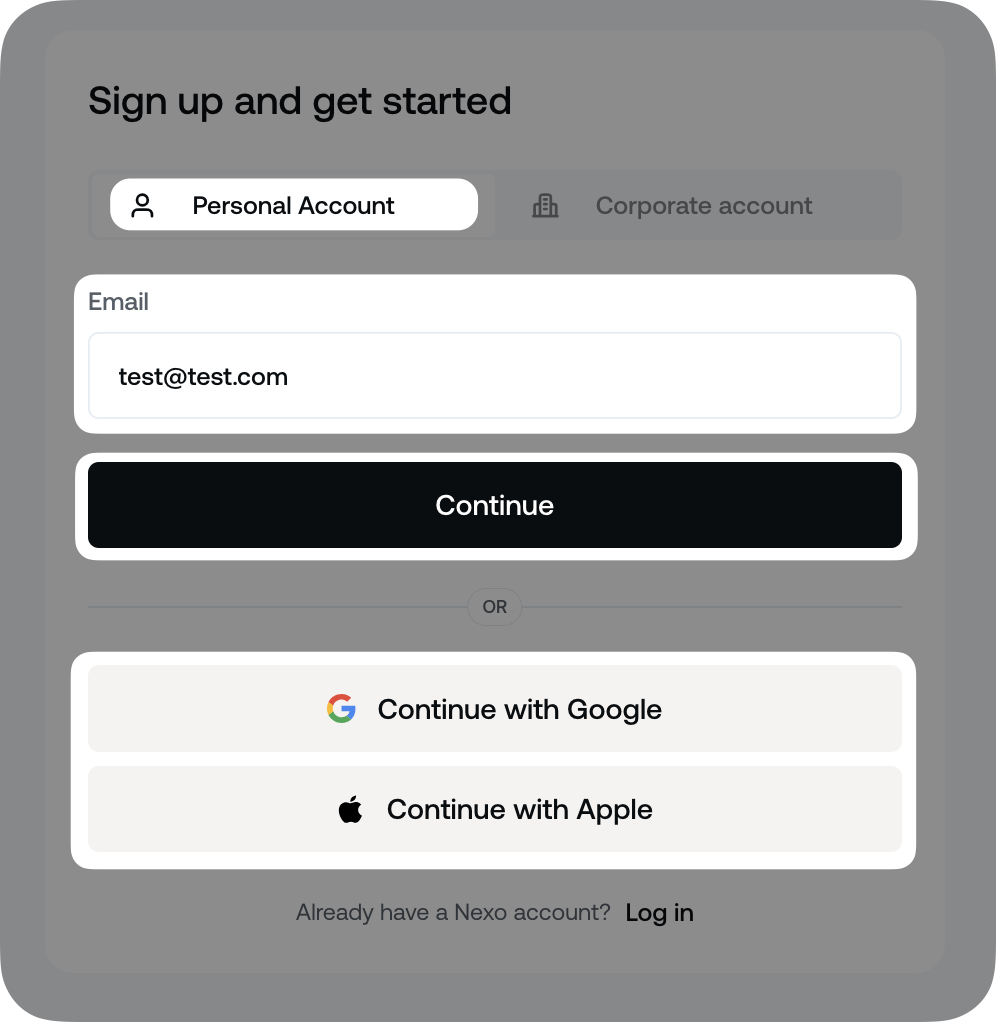
Alternatively, you can sign up with your Google or Apple account by clicking Continue with Google/Apple button and following the on-screen instructions. If you already have a Nexo account, you can link it to a Google or Apple account by following the steps in this article.
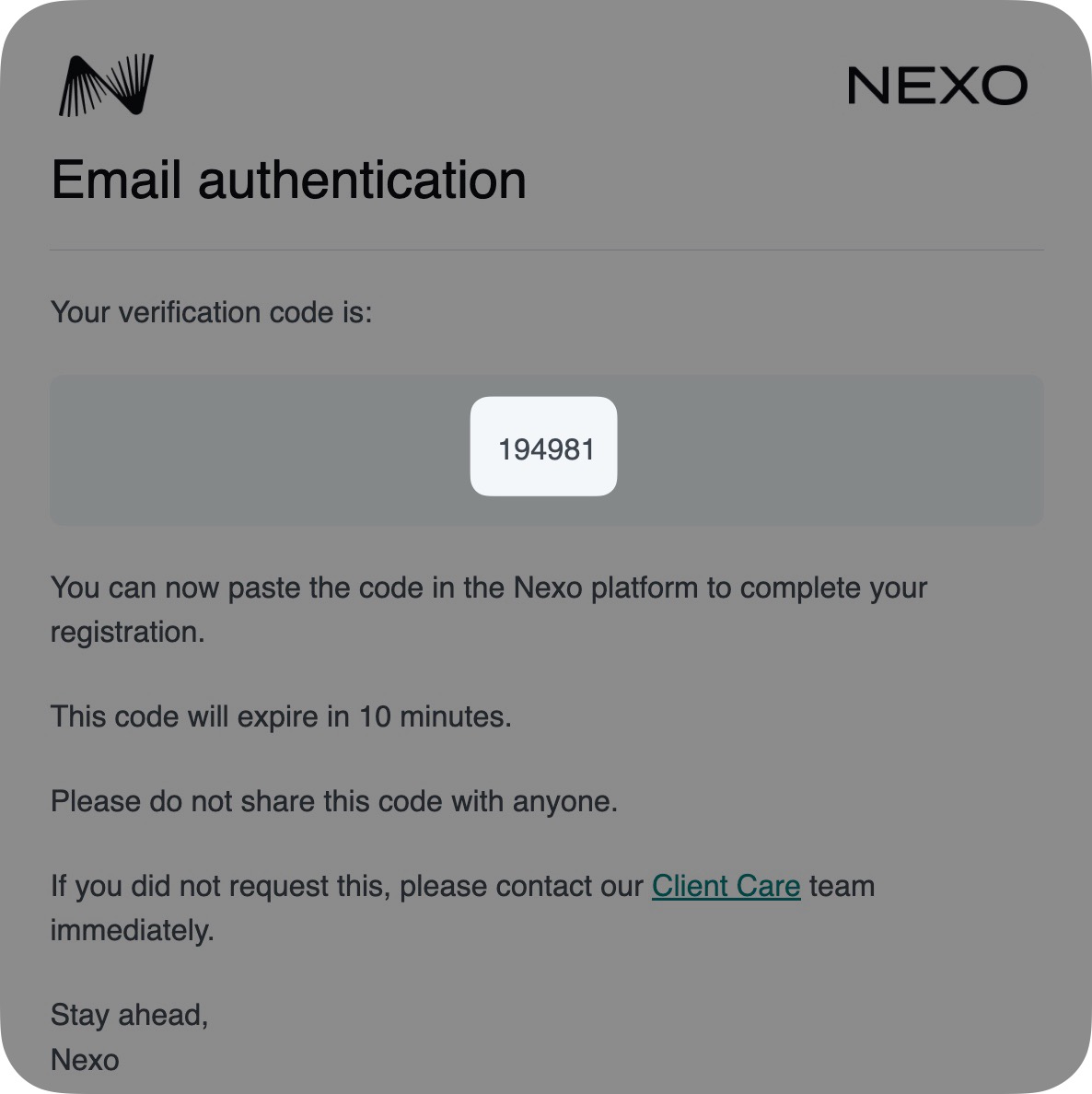
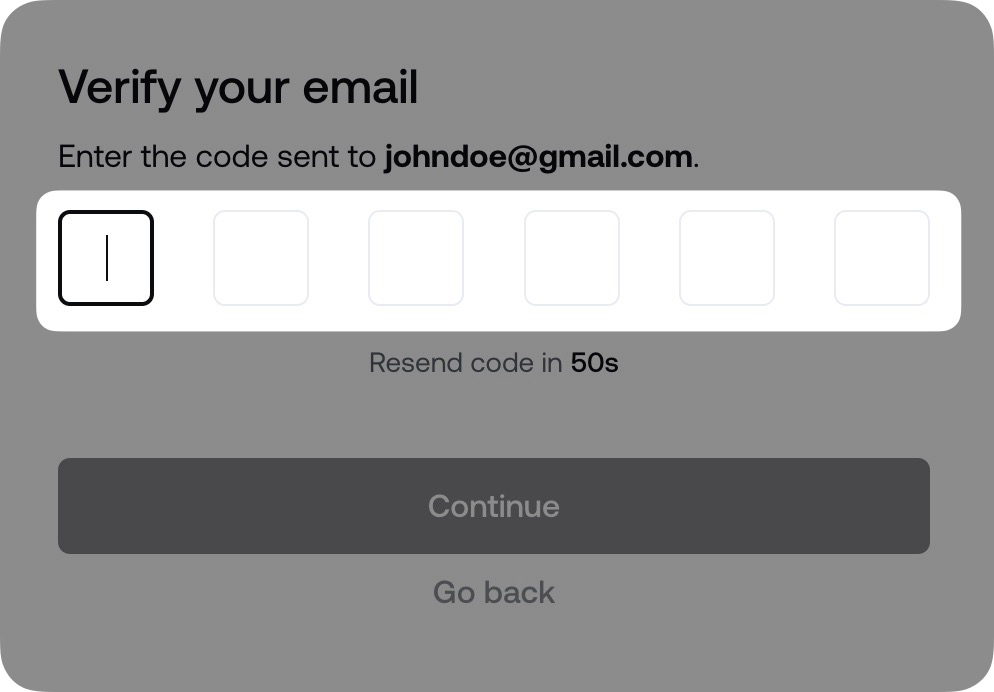
3. A verification code is sent to your email address. Enter or paste the 6-digit code in the field.
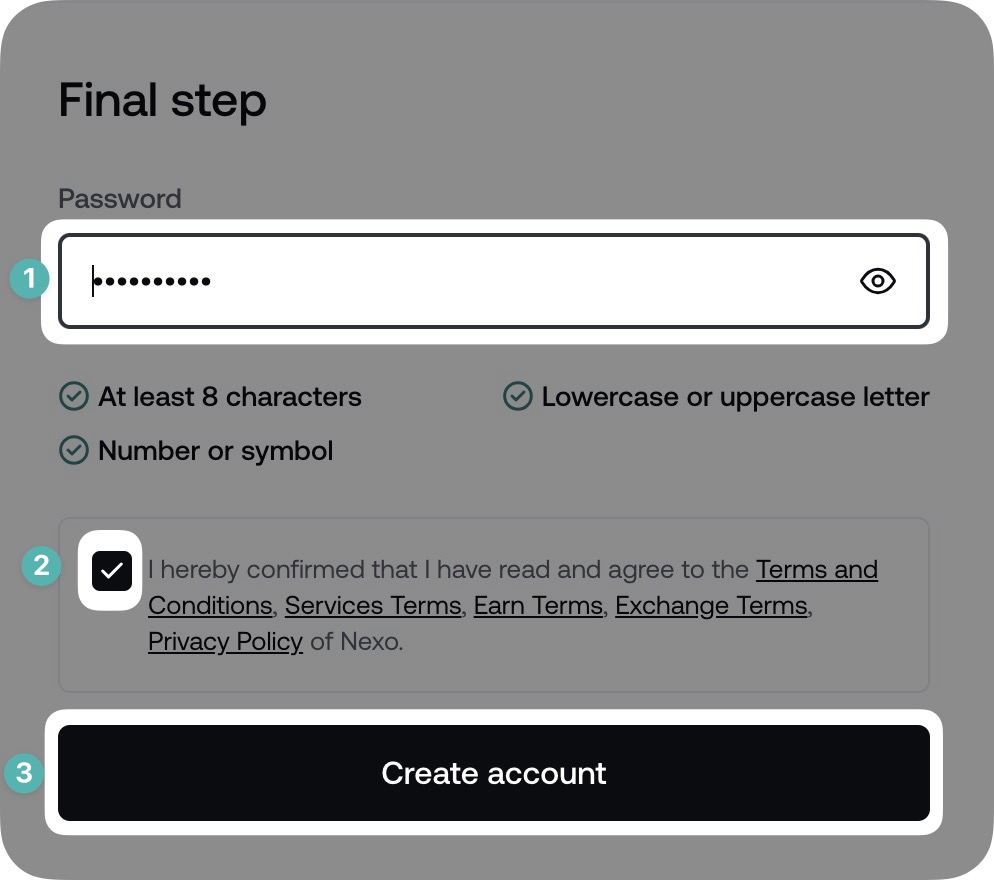
4. Enter a strong password, agree to our Terms and Conditions, and click Create account to complete the sign-up process.
Congratulations! Your account is now created. You will be redirected to the Dashboard, where you can start the Identity Verification process, which is required to use Nexo's services.
Note: Two-Factor Authentication via Email is automatically set, once the account is created.
Via the mobile app
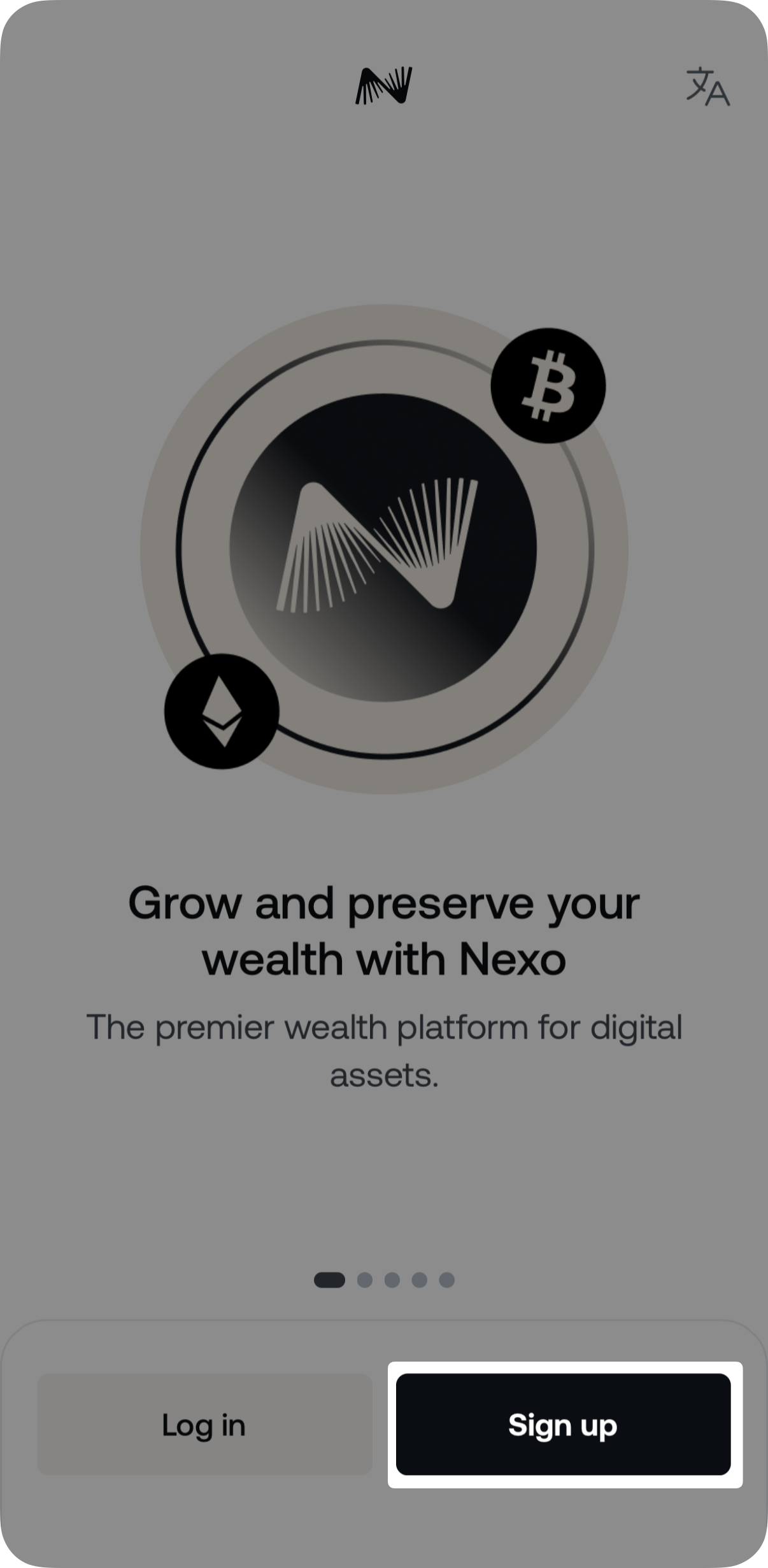
1. Open the Nexo app and tap Sign up.
2. Tap Sign up with Email.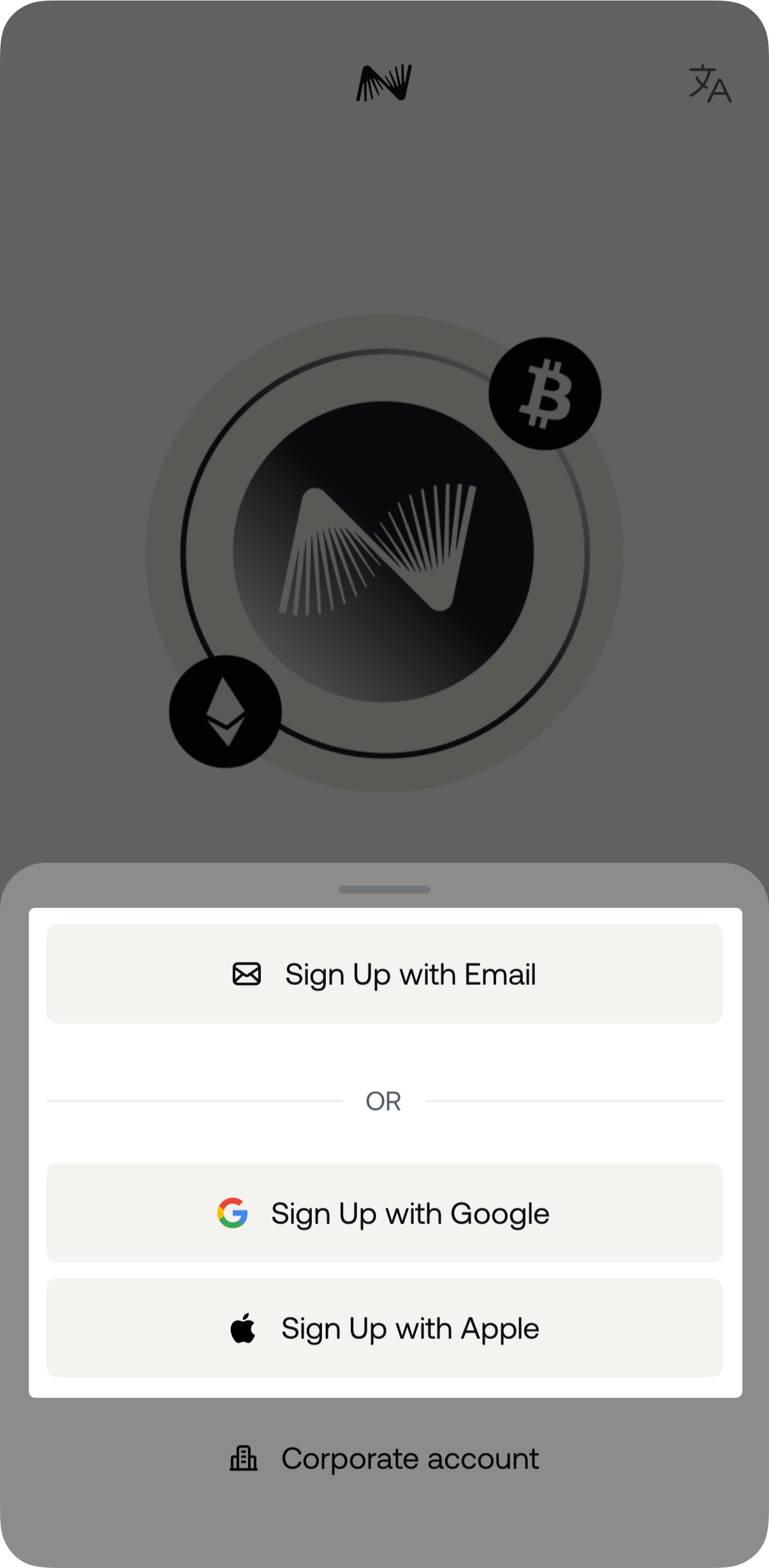
Alternatively, you can sign up with your Google or Apple account by tapping Sign up with Google/Apple and following the on-screen instructions.
3. Enter your email address and tap Continue.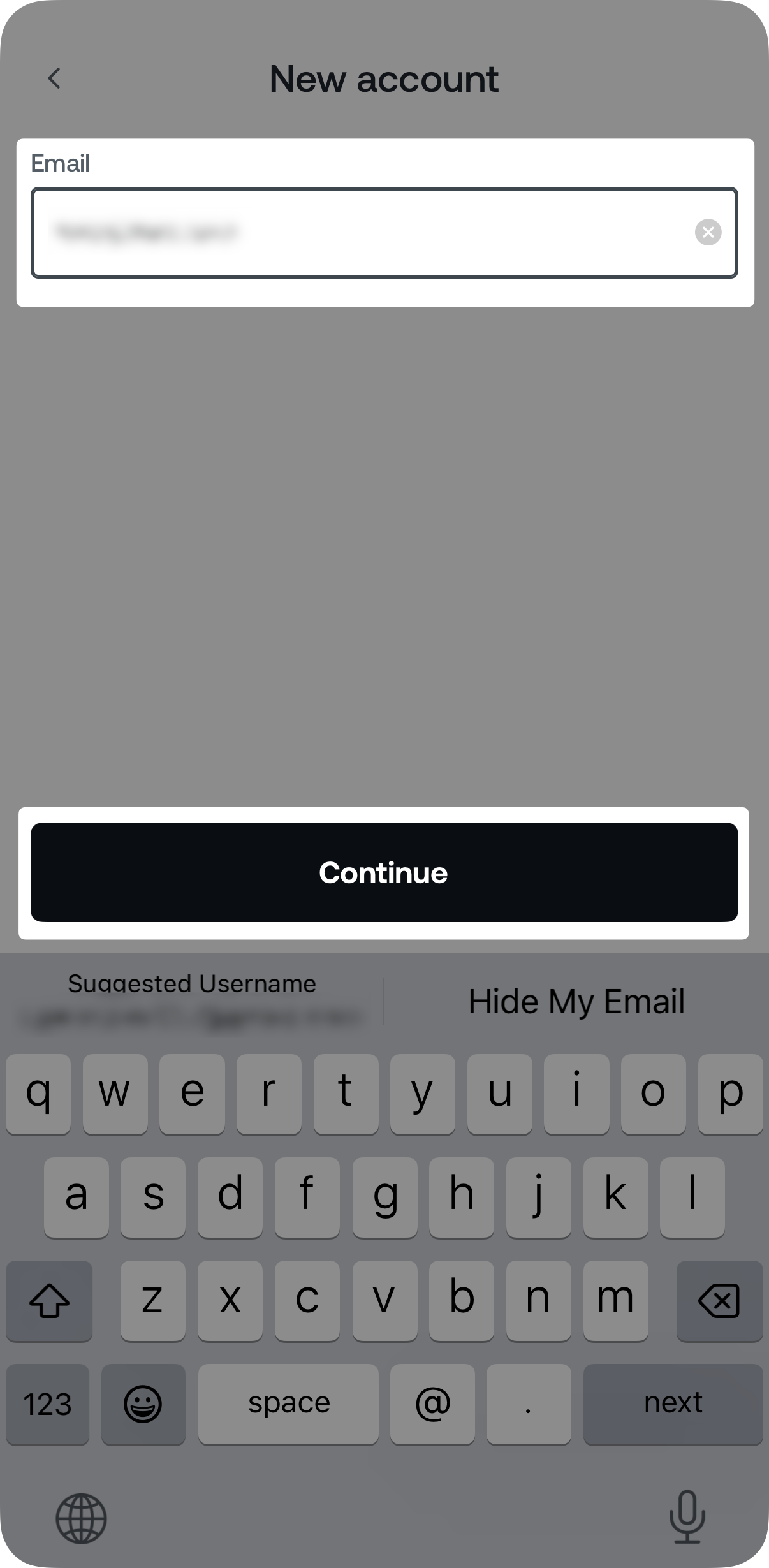
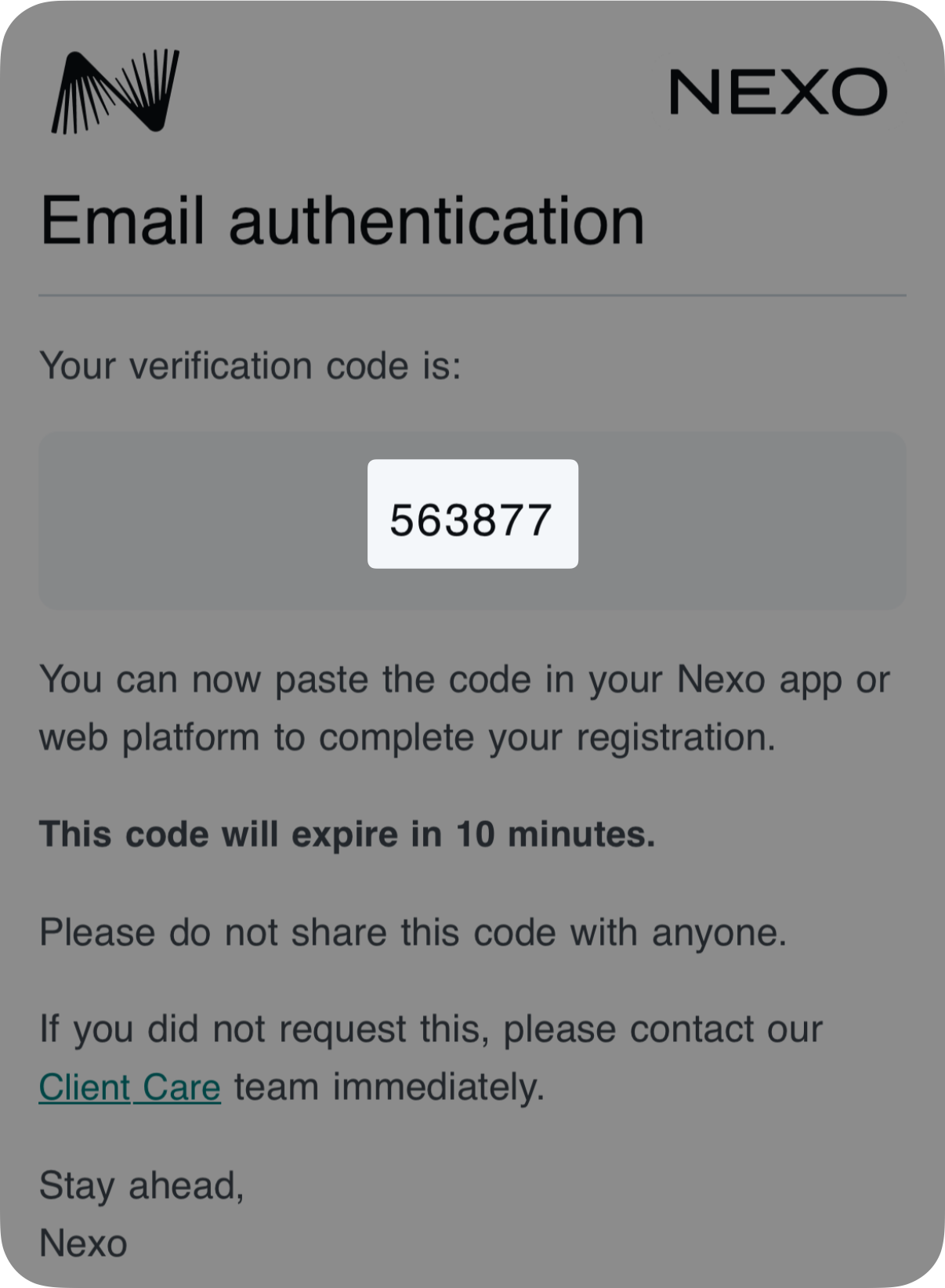
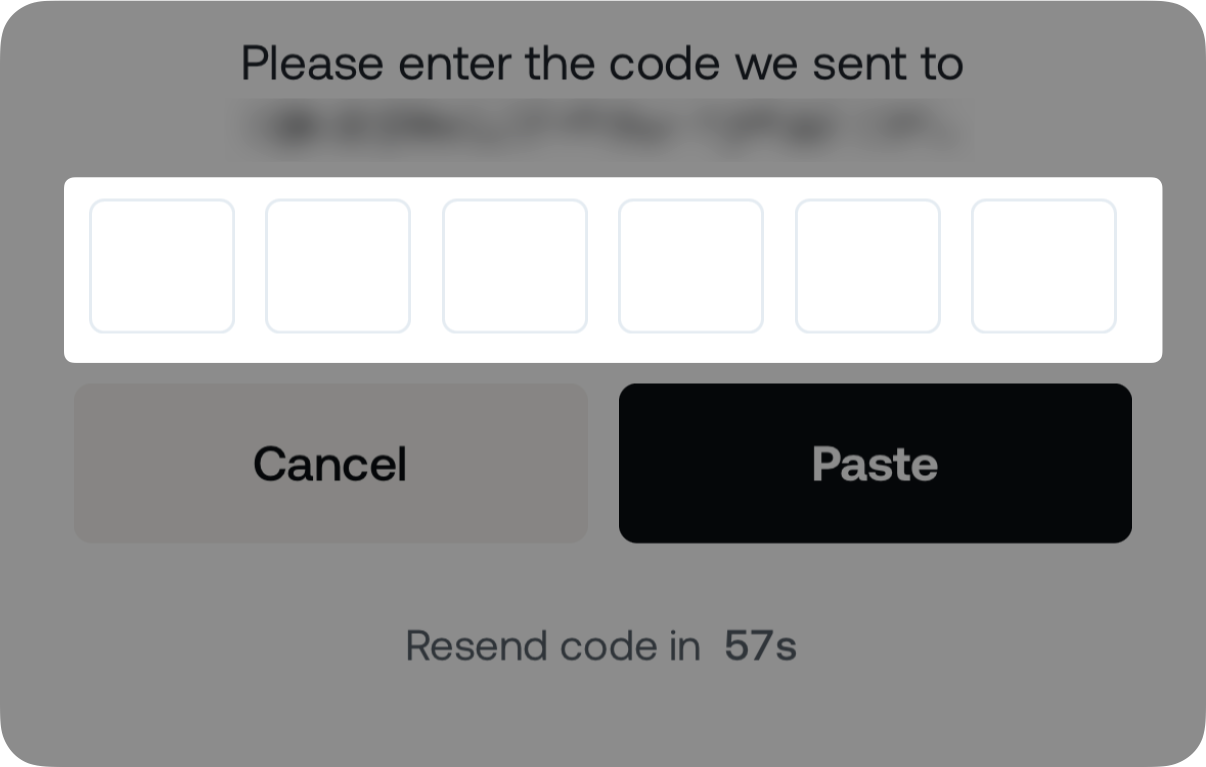
3. A verification code is sent to your email address. Enter or paste the 6-digit code in the field.
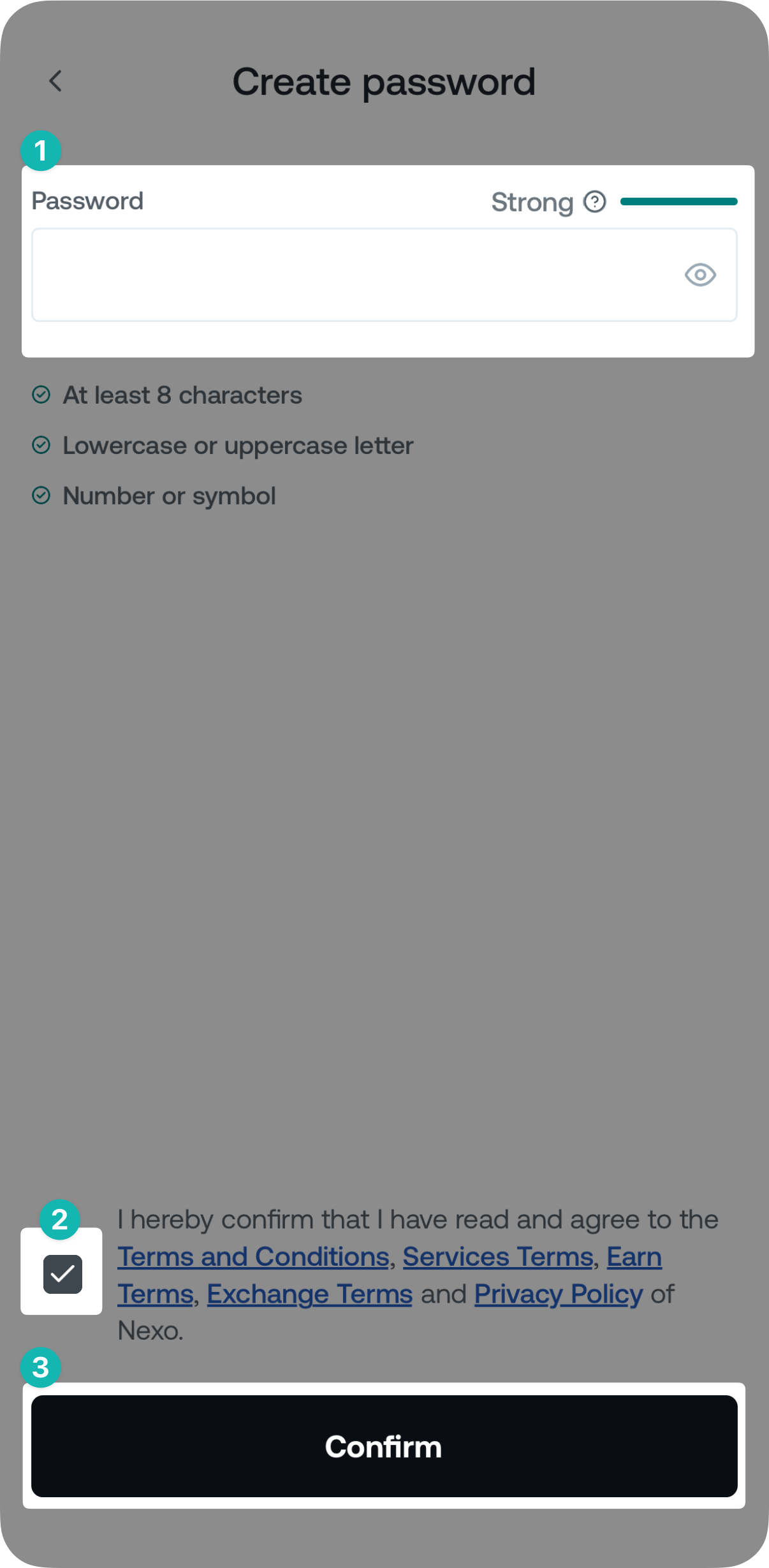
4. Choose a strong password, agree to our Terms & Conditions, and tap Confirm.
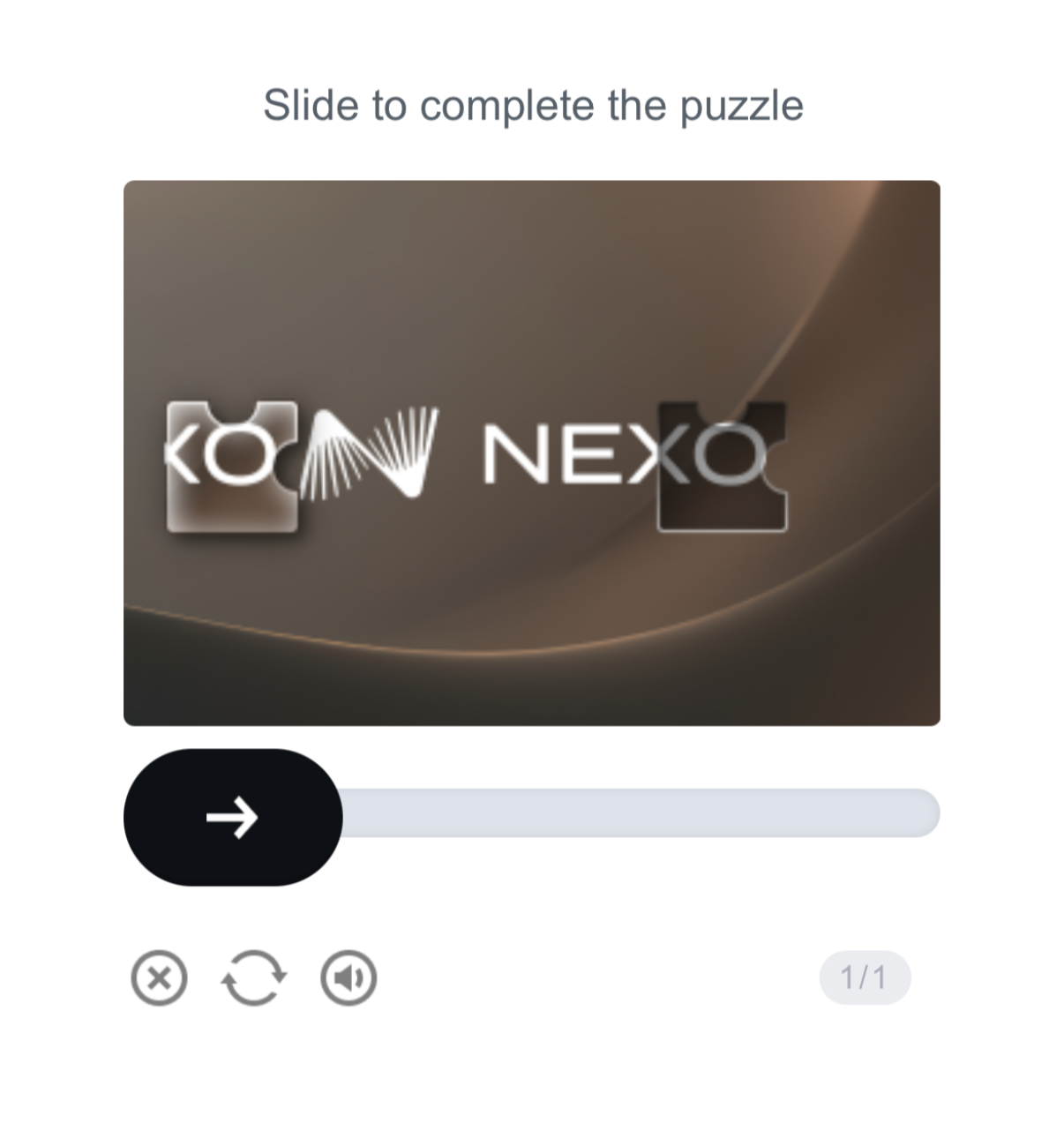
Note: On certain occasions, you may be prompted to complete a puzzle, using the slider on the screen.
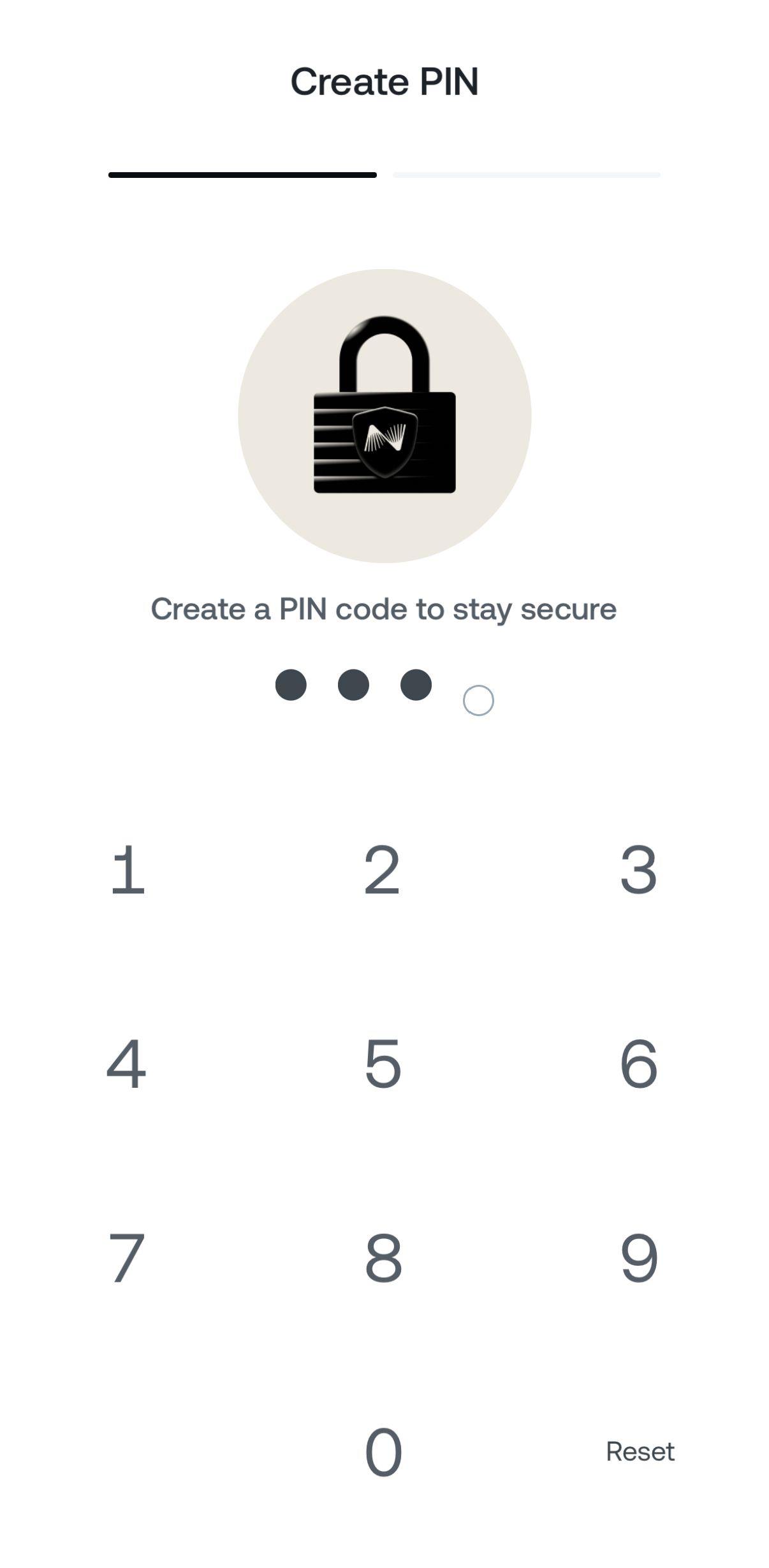
5. To further protect your Nexo account, you will be asked to select a 4-digit PIN code.
Optionally, you can choose to enable Biometric Authentication, giving you a more streamlined login experience.
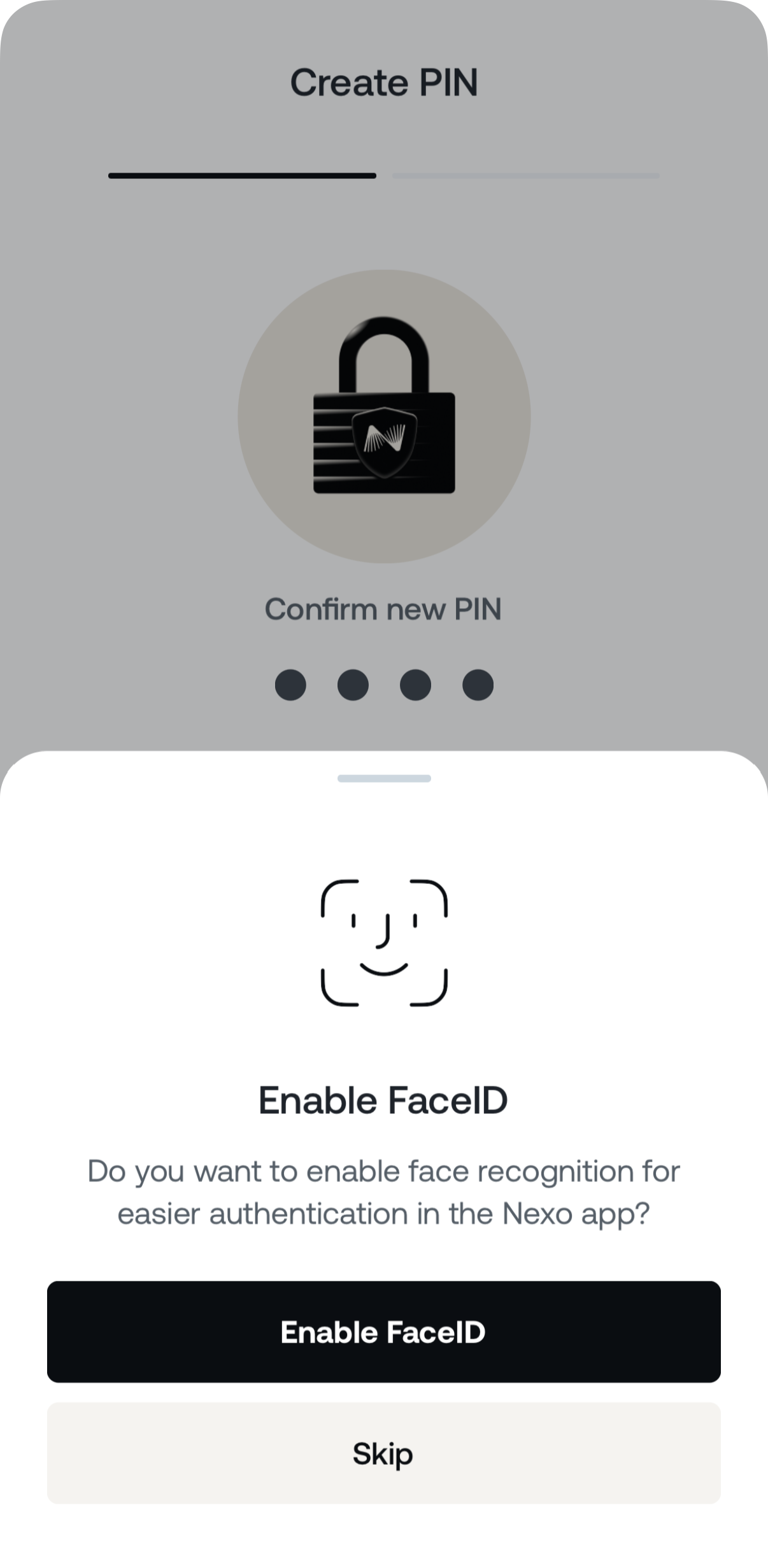
Congratulations! You have successfully registered your Nexo account.
Note: Two-Factor Authentication via Email is automatically set, once the account is created.
2. How to verify my identity
In order to gain access to Nexo products, you need to verify your identity. The Nexo identity verification process is fully automated and usually takes just a few minutes.
In some cases, additional Know Your Customer (KYC) checks may be necessary. All information you provide for this purpose is encrypted and securely stored for verification purposes only.
Via the web platform
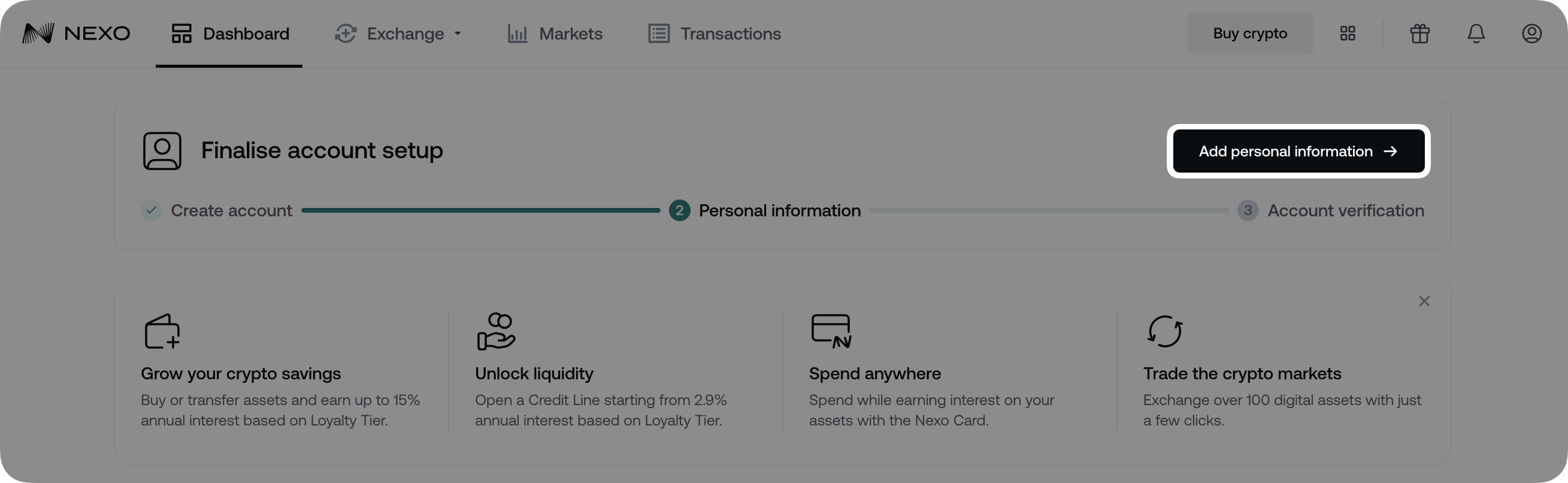
1. On the Dashboard, click Add personal information.
2. Fill in your residential country and address, legal name, and regulatory information. When ready, click Submit.
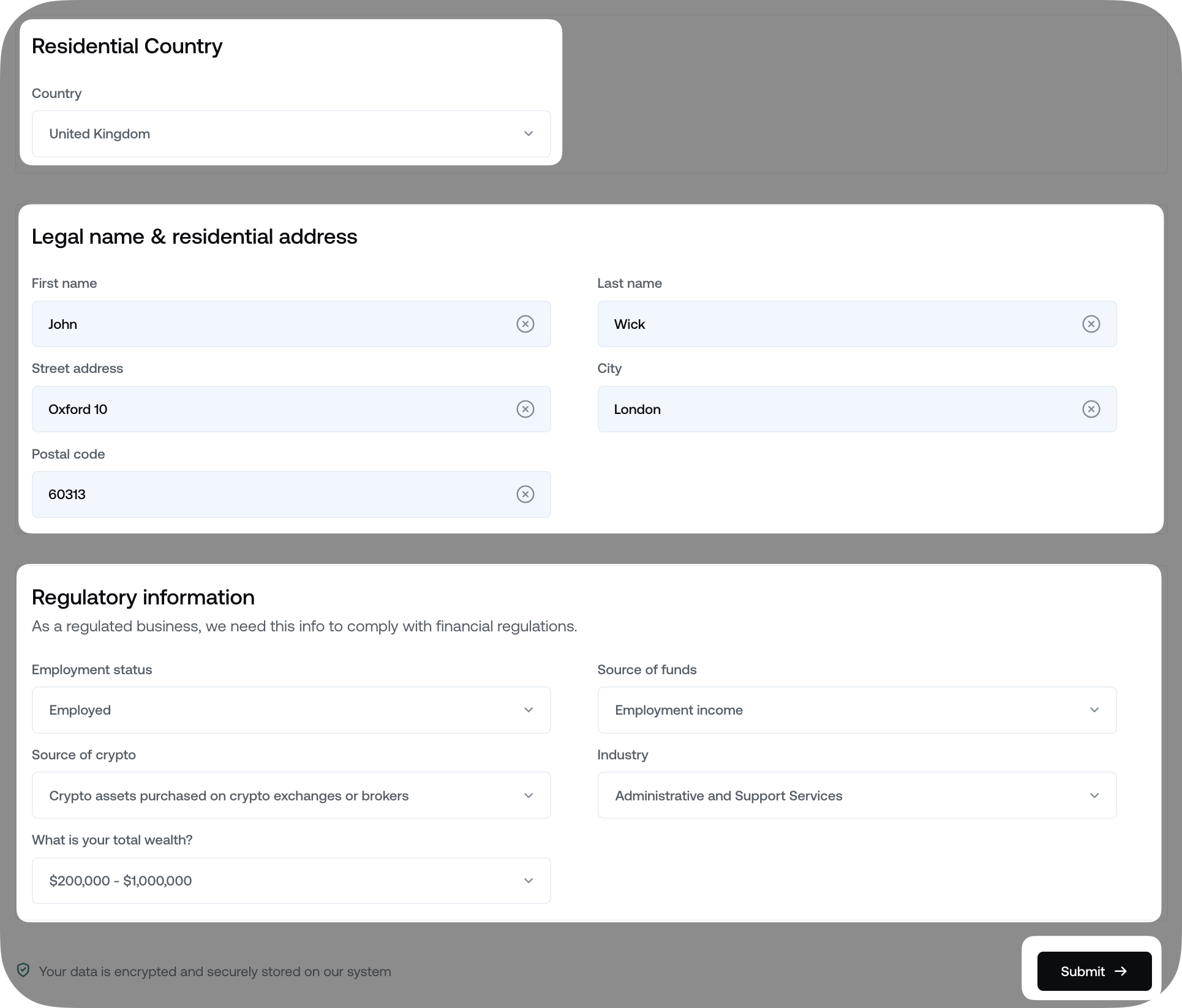
Note: Depending on your country of residence, you may have to provide additional regulatory information:
- Politically exposed person (PEP) status:
Indicates whether you, or someone you are closely associated with, has been entrusted with a prominent public function (e.g., government official, judge, ambassador, etc.). - Tax Identification Number (TIN):
A unique number assigned by tax authorities to individuals or legal entities for tax reporting purposes. - Reason for opening your account:
Specifies the purpose for creating the account (e.g., earning, trading, etc.). - Expected transaction volume:
An estimate of the total annual value of transactions you plan to carry out through the account.

3. On the next screen, click Verify your account to proceed to Identity Verification.
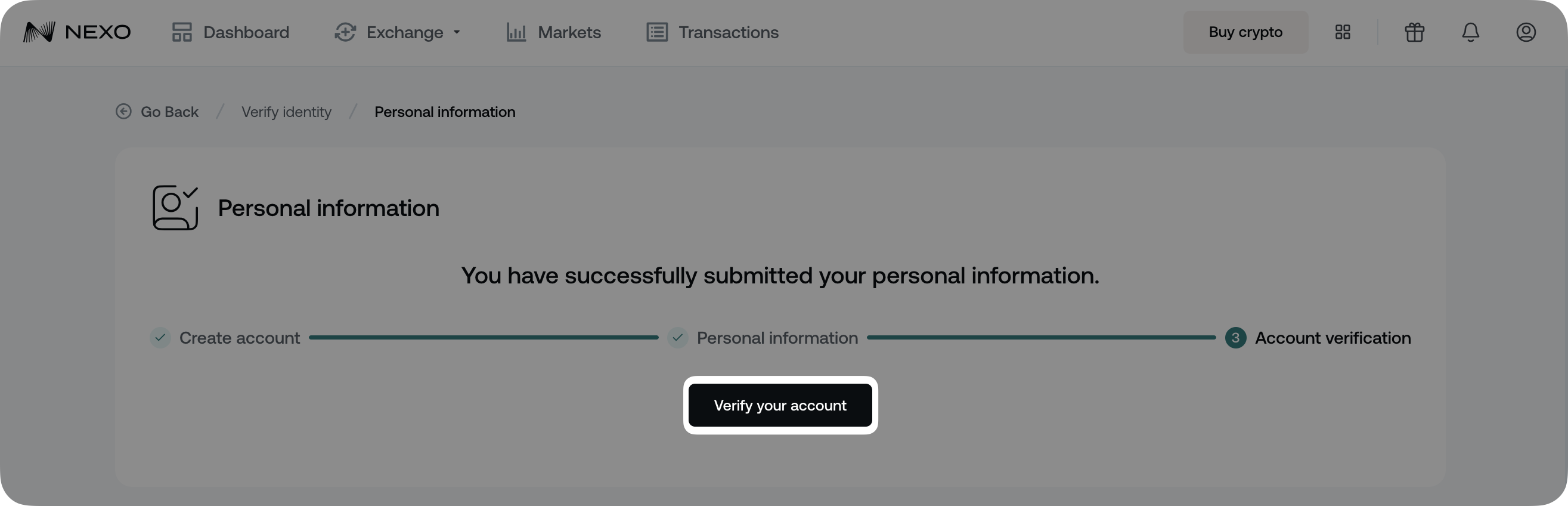
4. You will be taken to our verification partner's interface.
First, confirm whether you are a US or a non-US resident and click Continue.
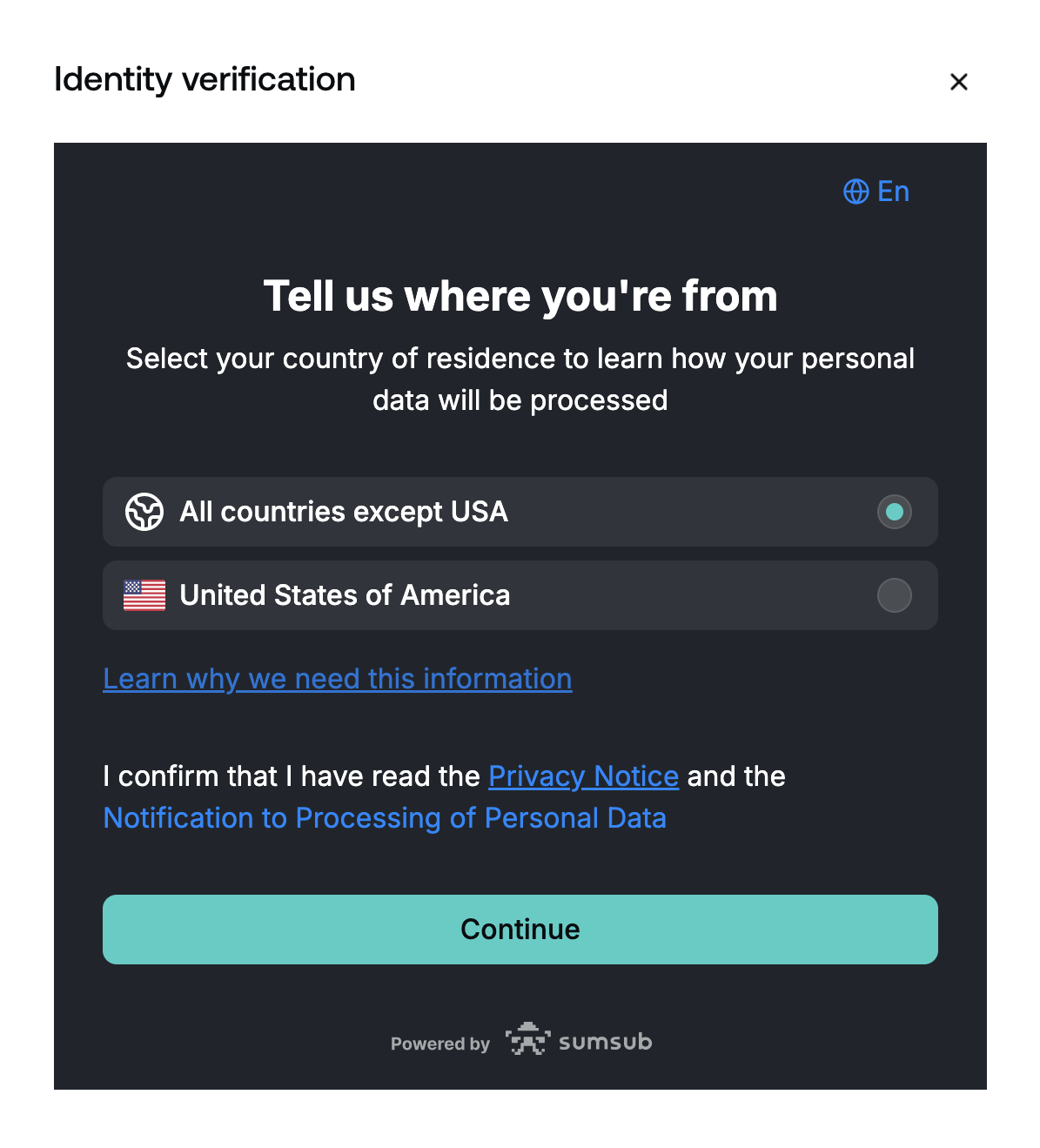
5. Next, select the issuing country of your identity document, choose the document type, and click Continue. Depending on the issuing country, you can choose any supported document, which may include one or more of the following types:
- Driver license
- Passport
- Residence permit
- ID card
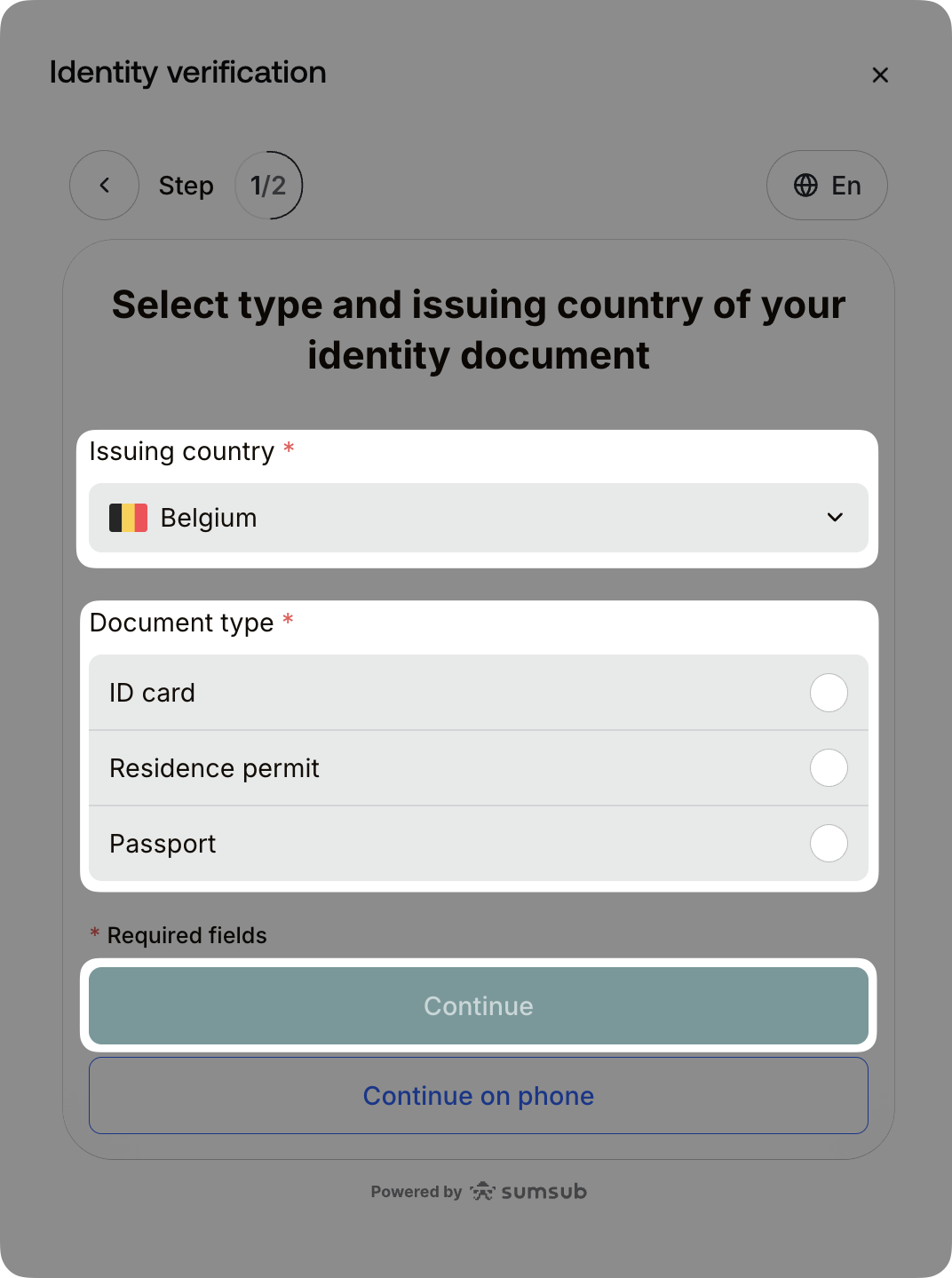
Important: European Economic Area (EEA) residents can only verify their identity with documents issued by an EEA country, excluding driver licenses.
6. Follow the on-screen instructions and take a live photo of your identity document. For certain document types, you may need to provide both the front and the backside.
Make sure the details are readable, and tap Document is readable. If the image is not clear, you can take another photo by tapping Retake photo.
7. The next step is a liveness check, where you need to take a selfie for verification purposes.
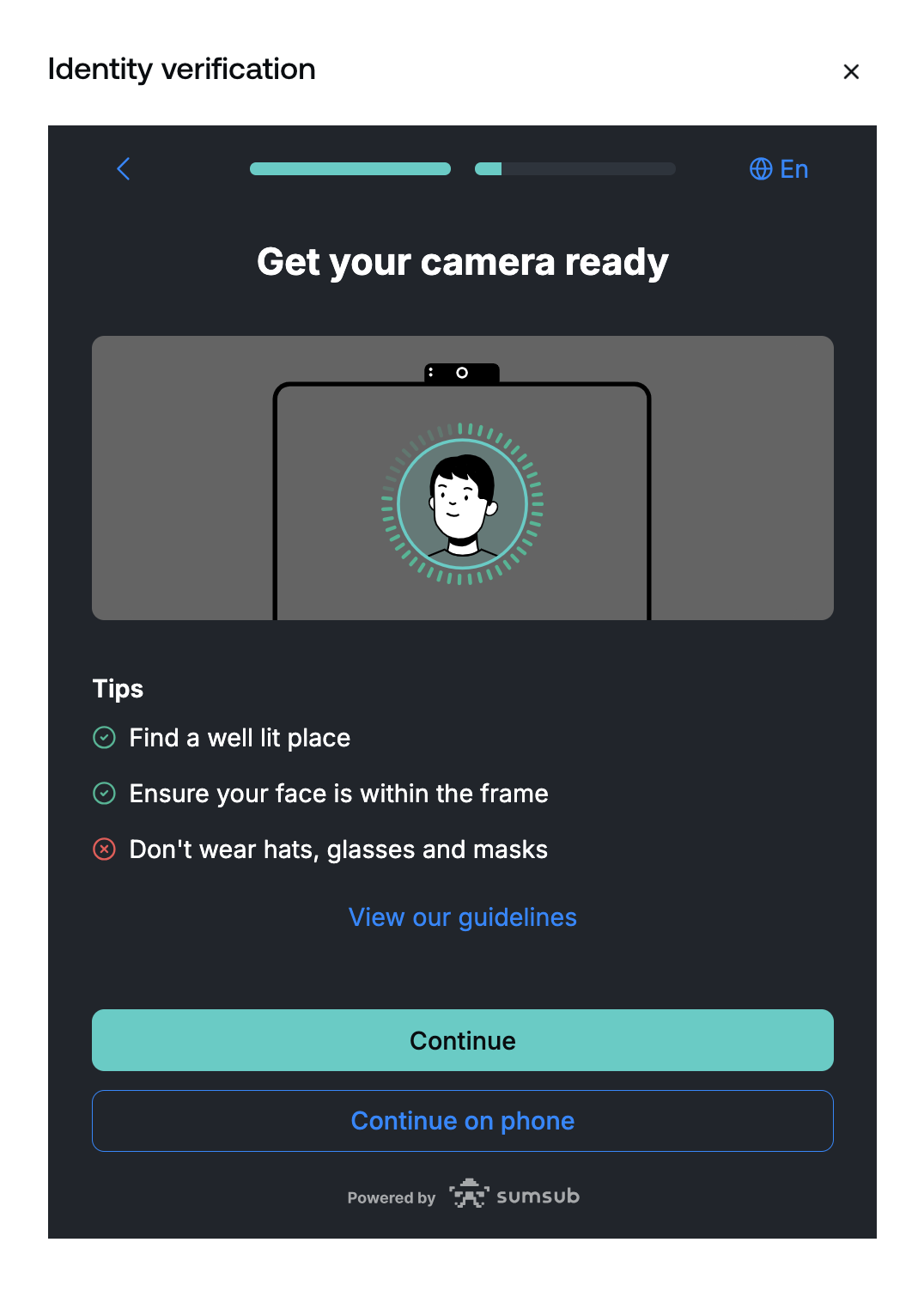
The review of your submission usually takes a few minutes. However, in rare cases, it may take up to one business day.
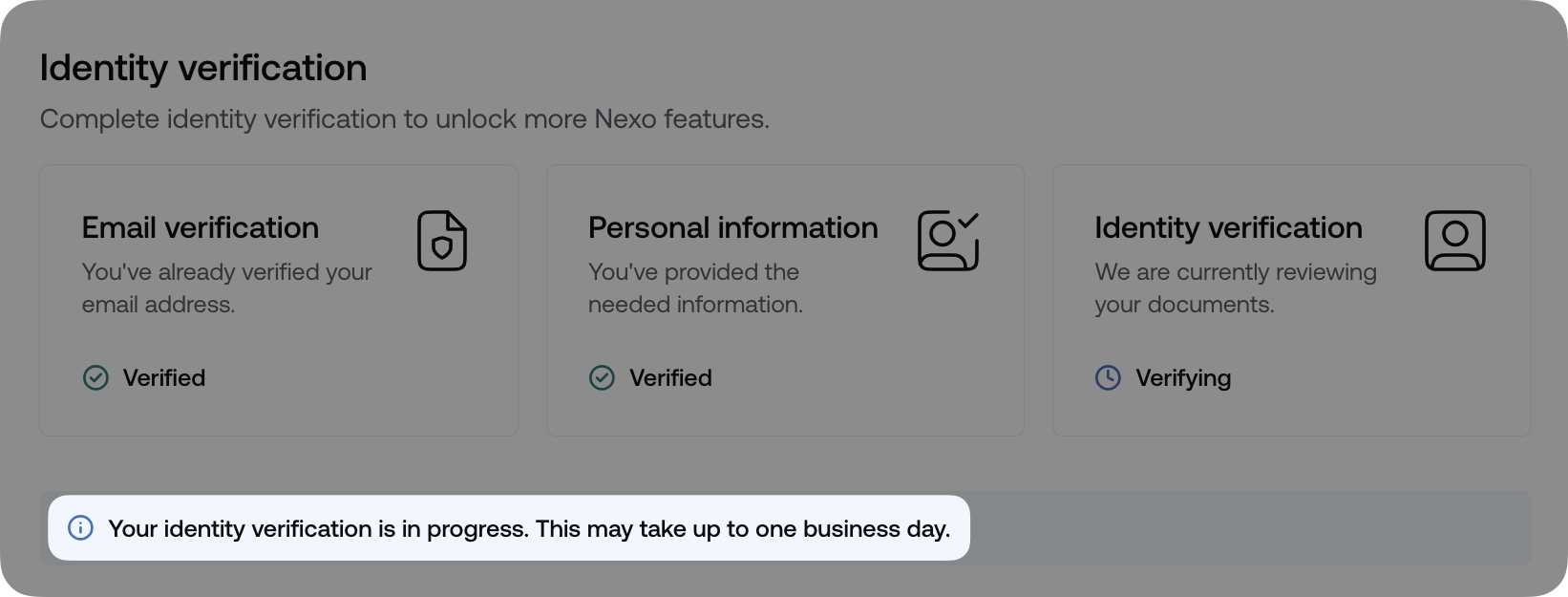
You will receive an email and an in-app notification with the outcome of your application.
8. The last step is to verify your phone number, which happens immediately after you submit the identity verification photos.
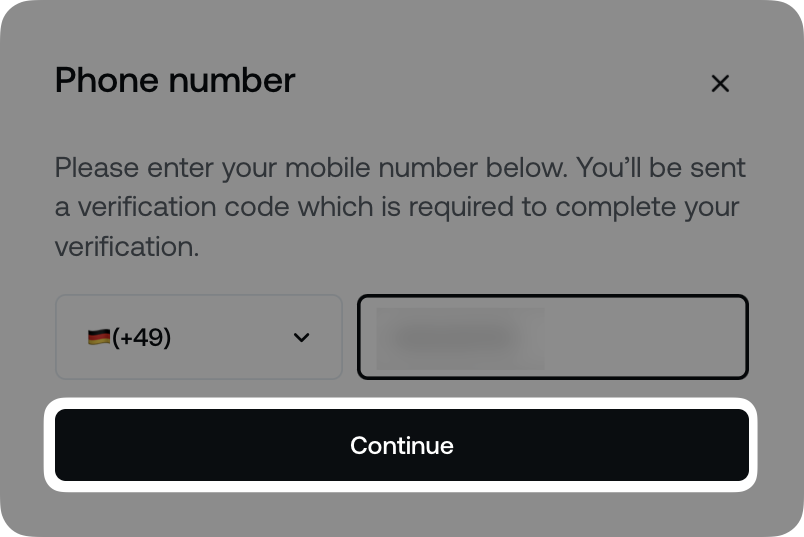
Select the country code from the drop-down menu, then enter the phone number itself. To proceed, click Continue.
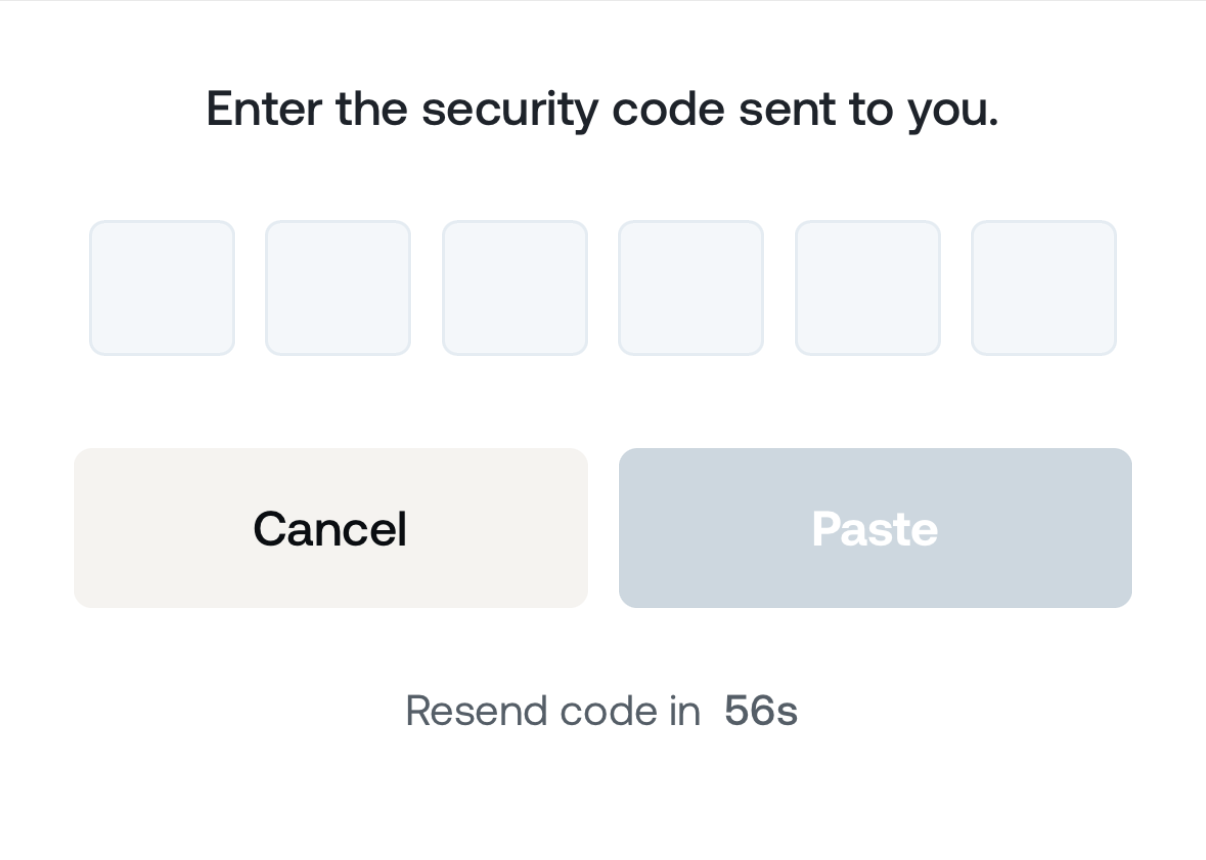
You will receive an SMS containing a 6-digit security code. Enter the code to finish verifying your phone number.
Via the mobile app
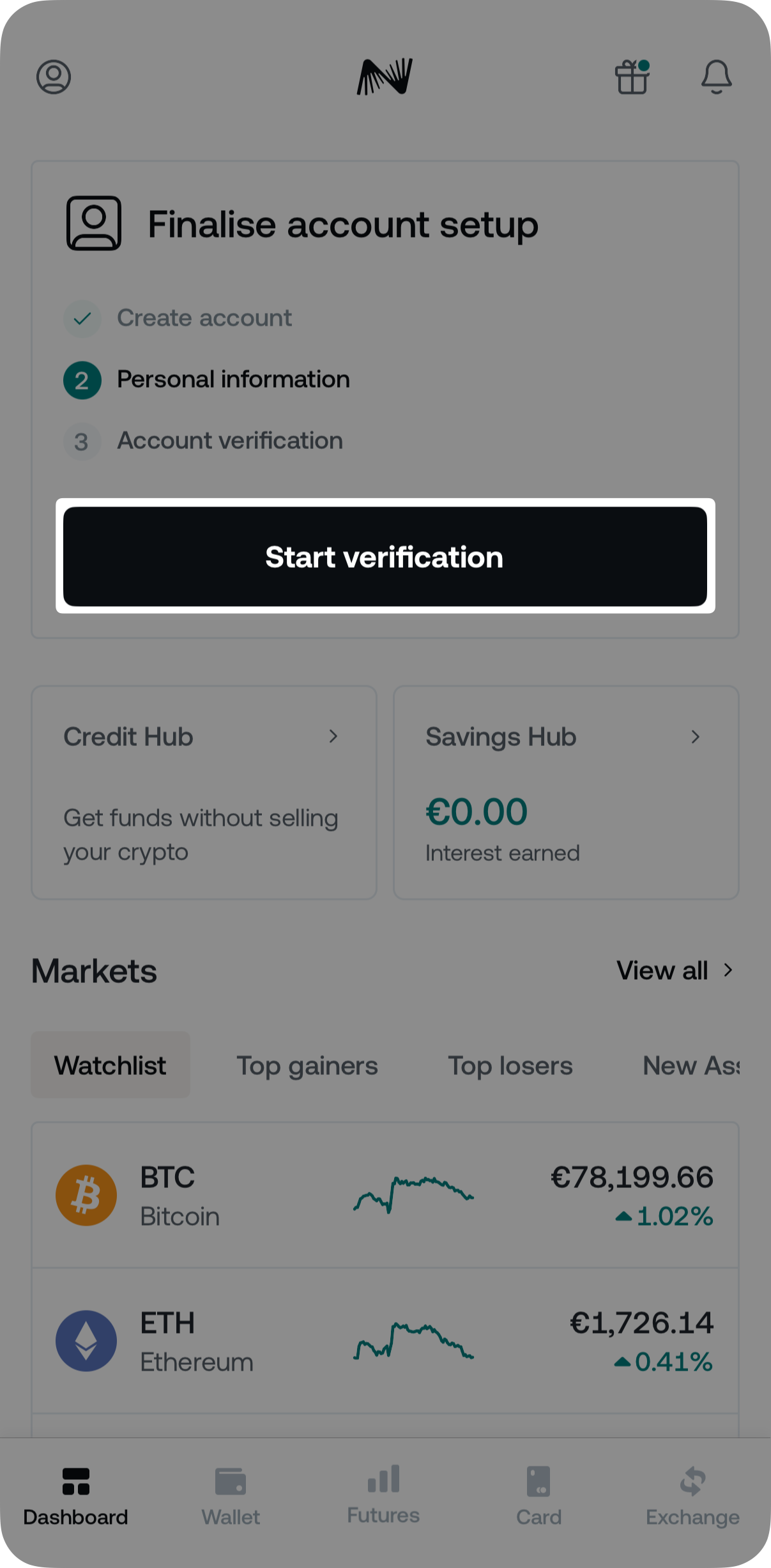
1. On your dashboard, tap the Start verification button.
2. Enter your legal name and tap Continue. Then, choose your country of residence.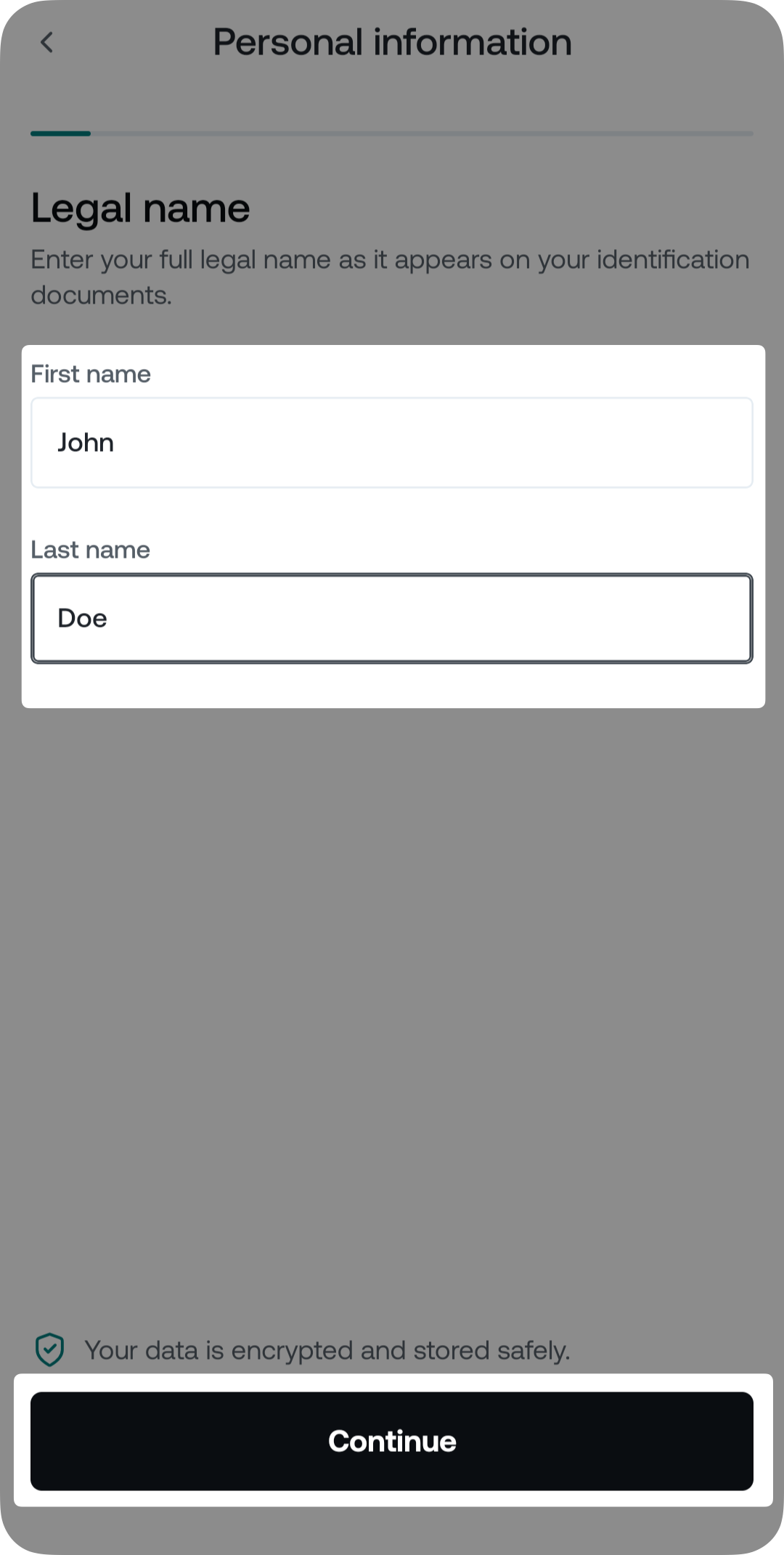
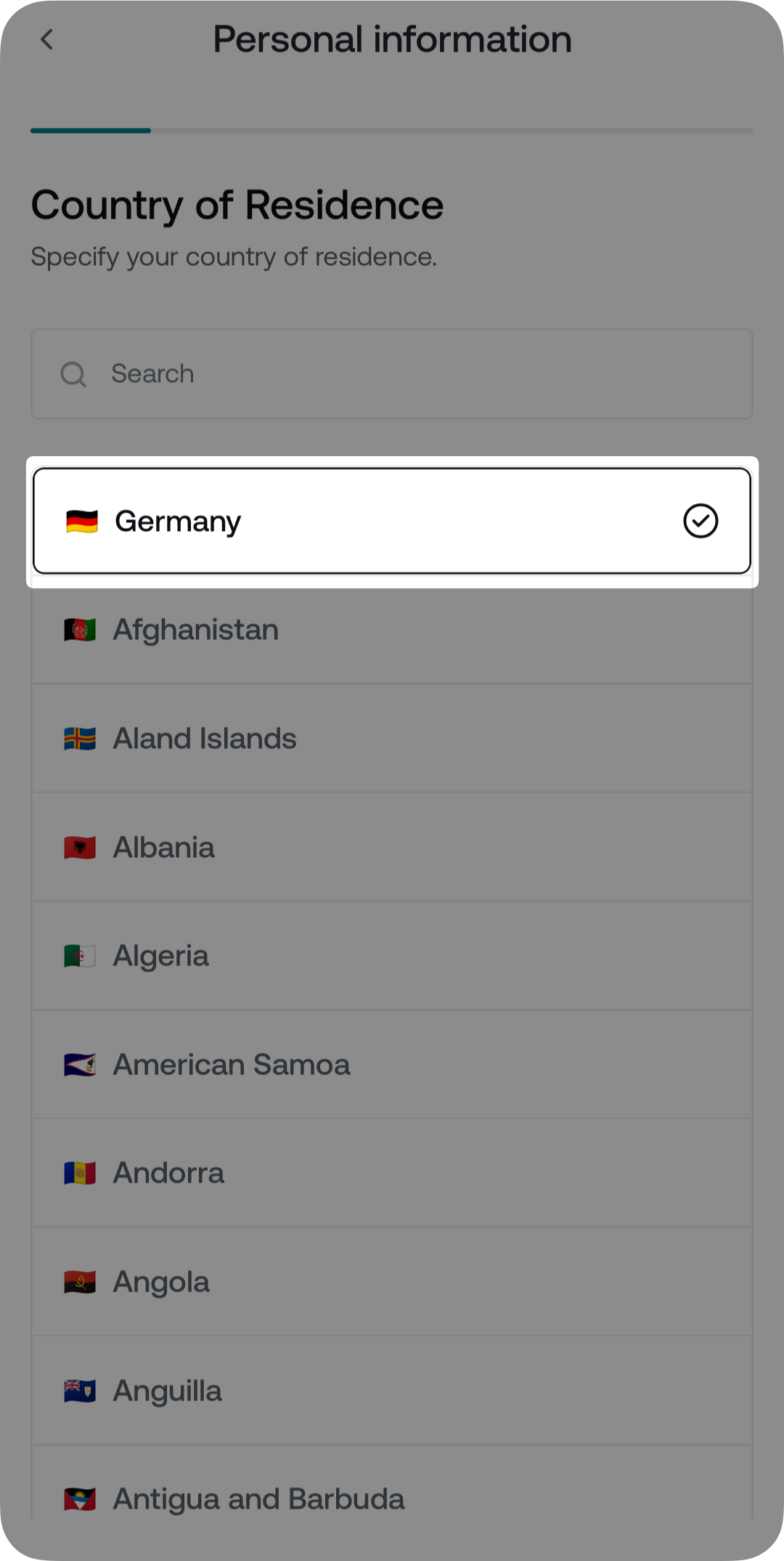
3. Enter your residential address and select Continue.
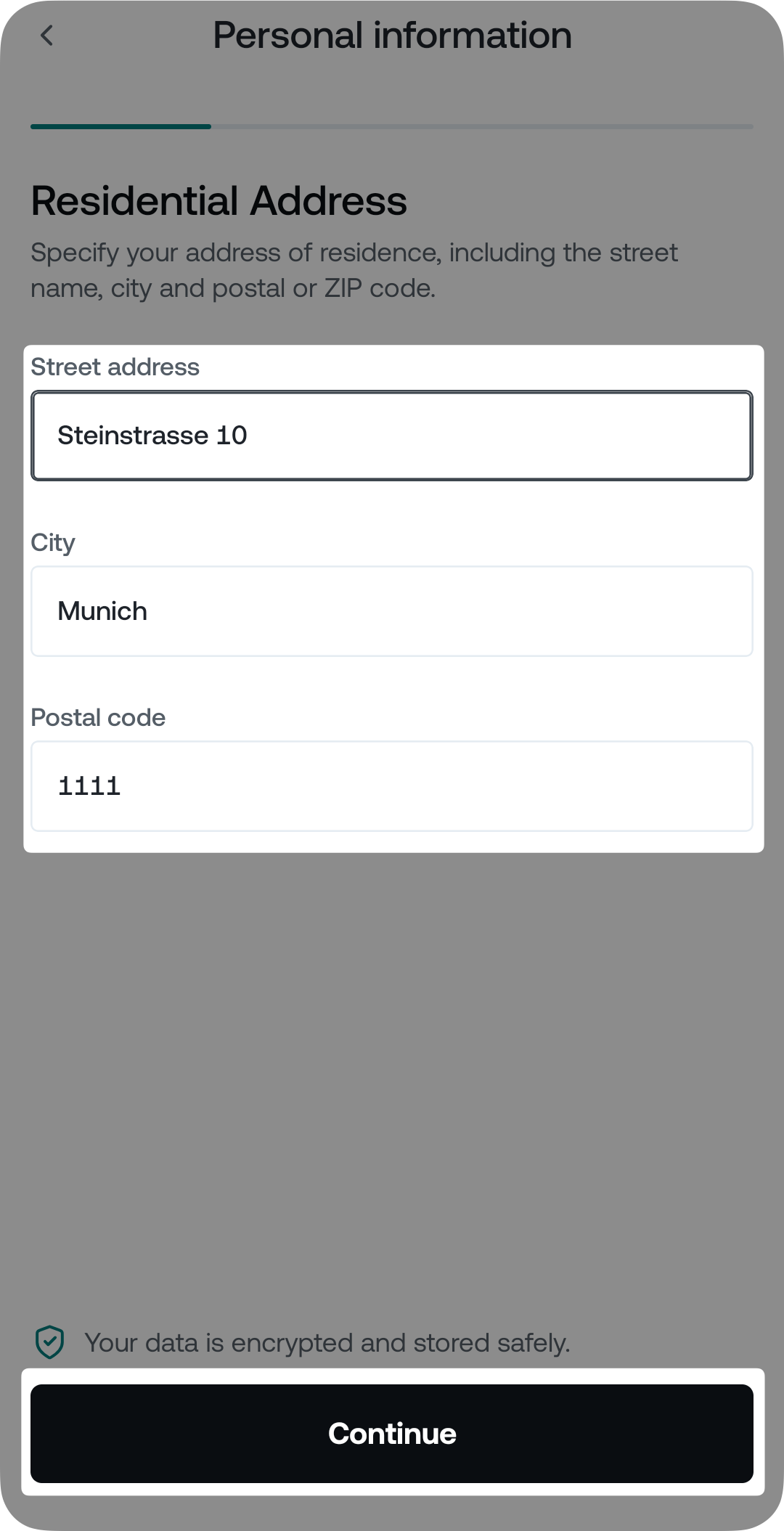
4. On the next screens, provide the requested regulatory information (employment status, source of funds, source of crypto, industry, and total wealth).
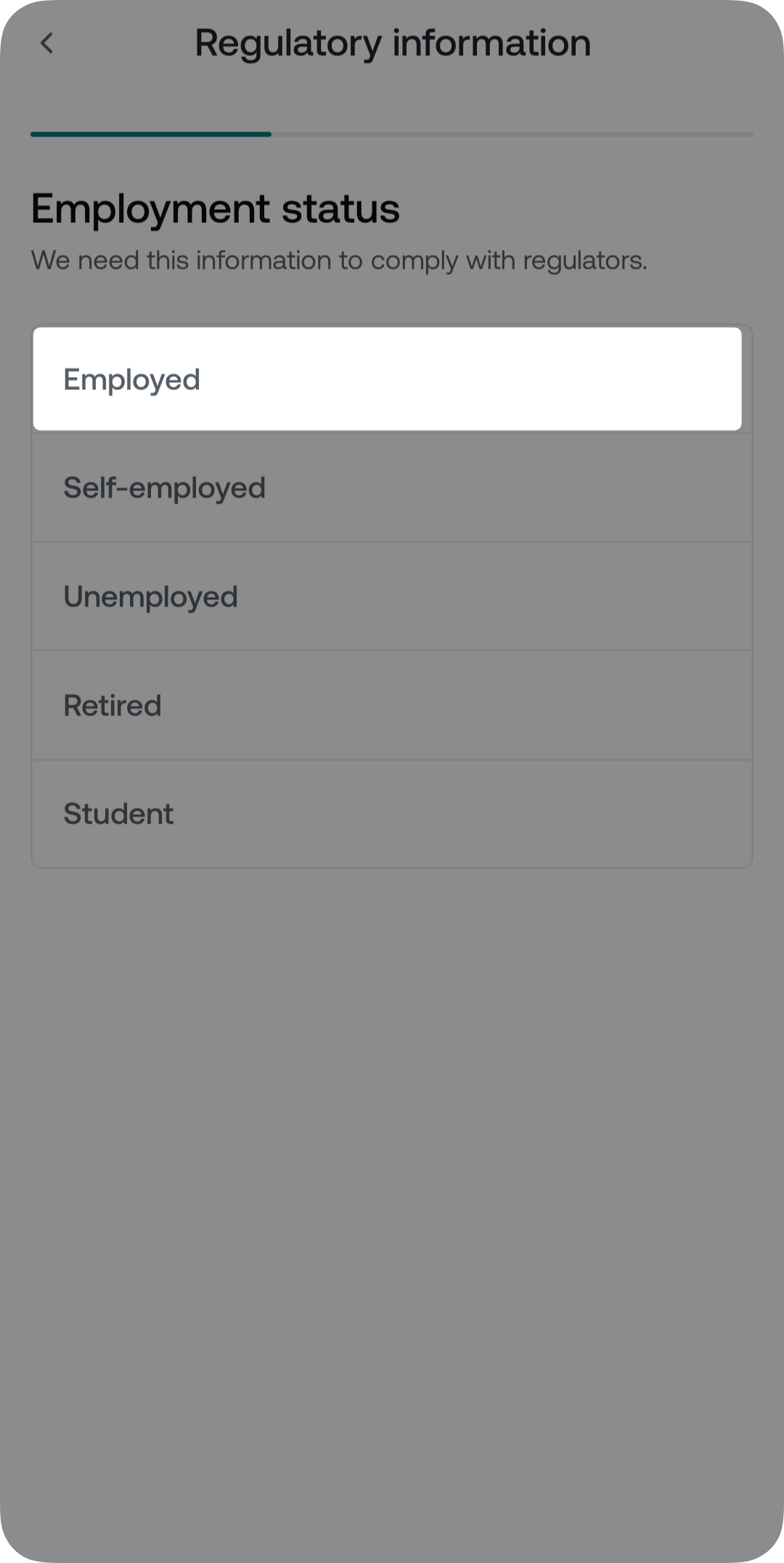
Note: Depending on your country of residence, you may have to provide additional regulatory information:
- Politically exposed person (PEP) status:
Indicates whether you, or someone you are closely associated with, has been entrusted with a prominent public function (e.g., government official, judge, ambassador, etc.). - Tax Identification Number (TIN):
A unique number assigned by tax authorities to individuals or legal entities for tax reporting purposes. - Reason for opening your account:
Specifies the purpose for creating the account (e.g., earning, trading, etc.). - Expected transaction volume:
An estimate of the total annual value of transactions you plan to carry out through the account.
Additional note: EEA residents who register on or after June 30, 2026, may be asked to provide further information during account creation to meet applicable national regulatory requirements. The app or web platform will guide you through any additional steps.
5. Review the summary of the provided information and tap Submit.
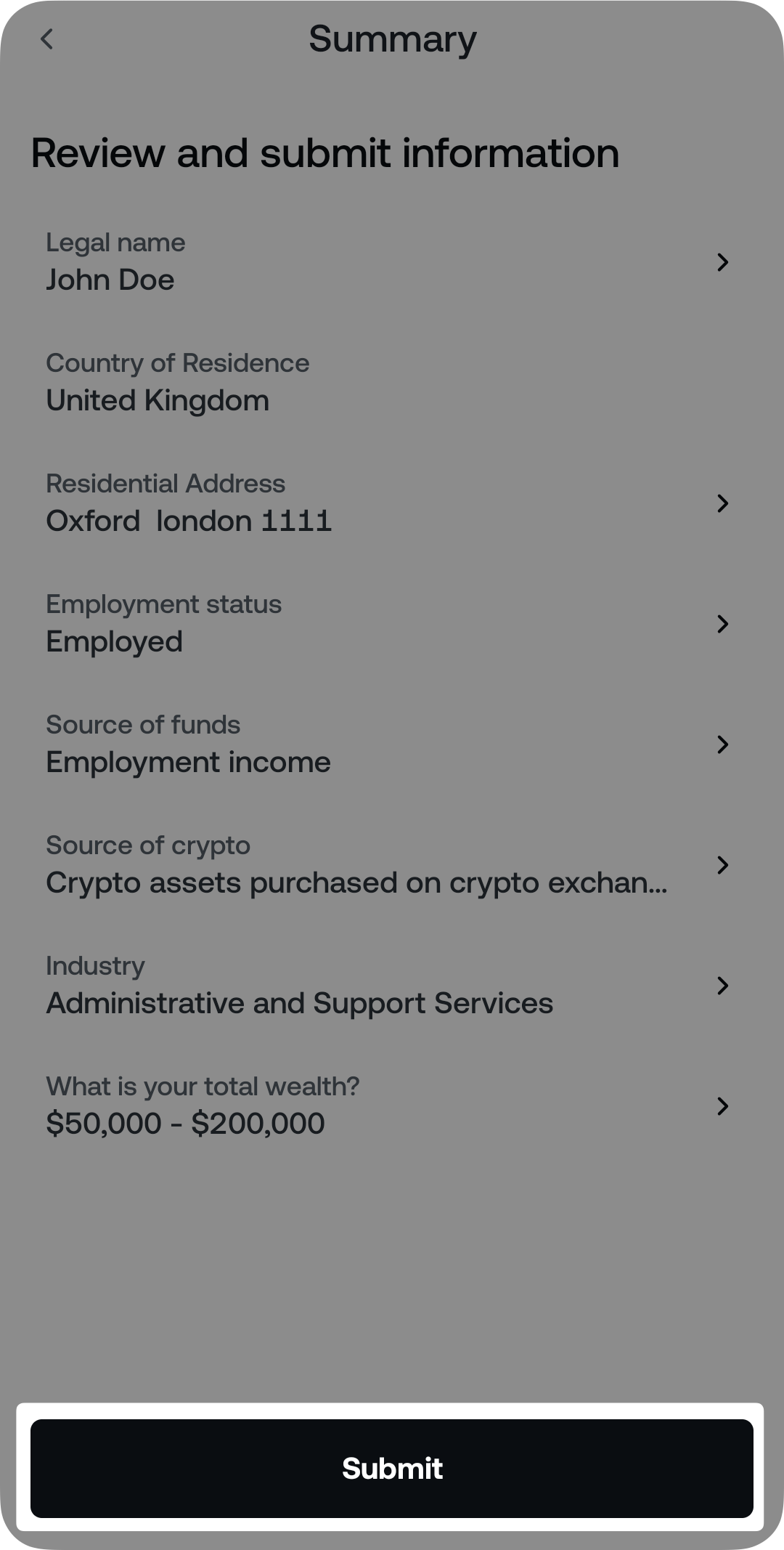
6. Tap Continue verification to proceed with Identity Verification.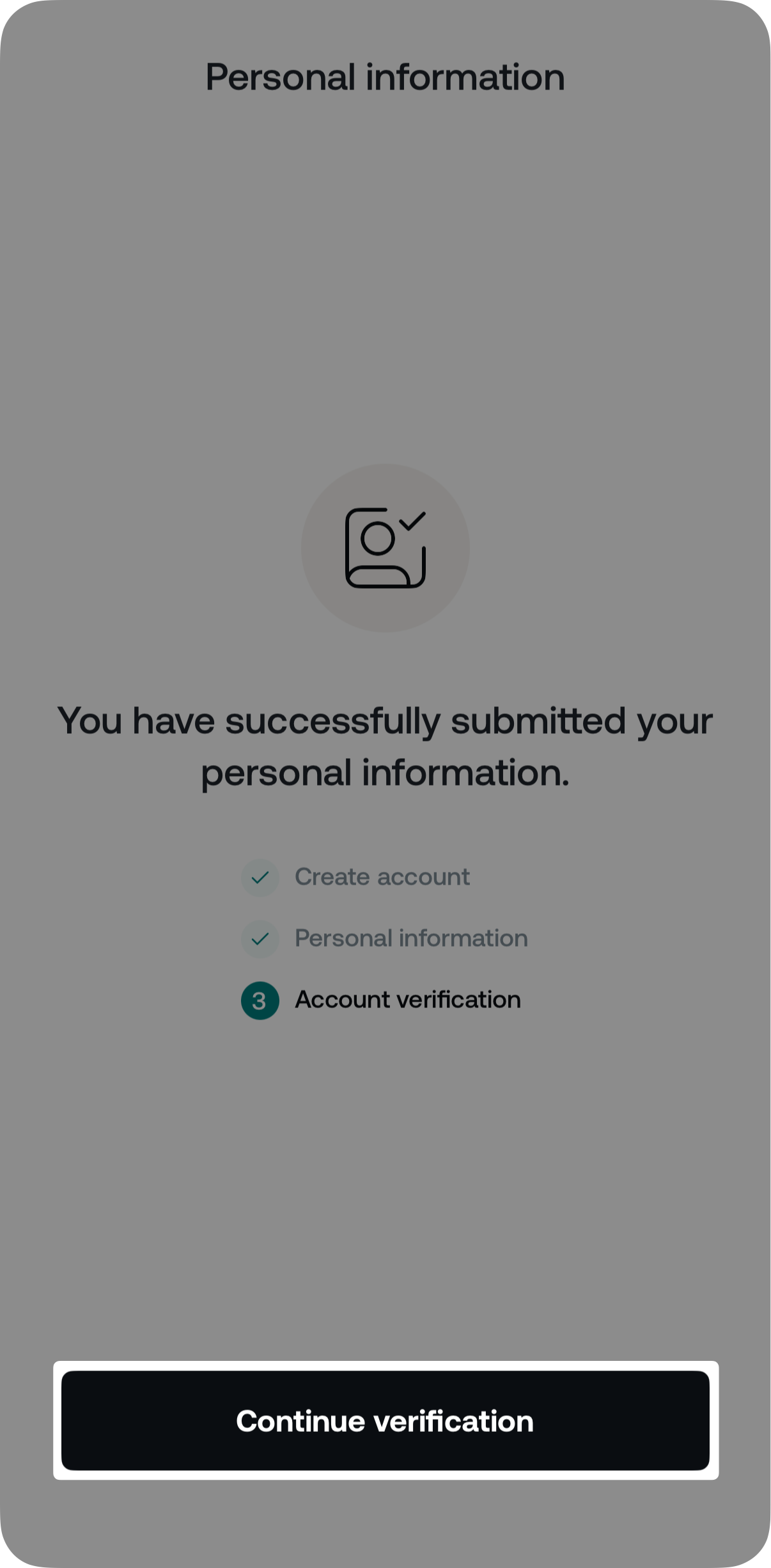
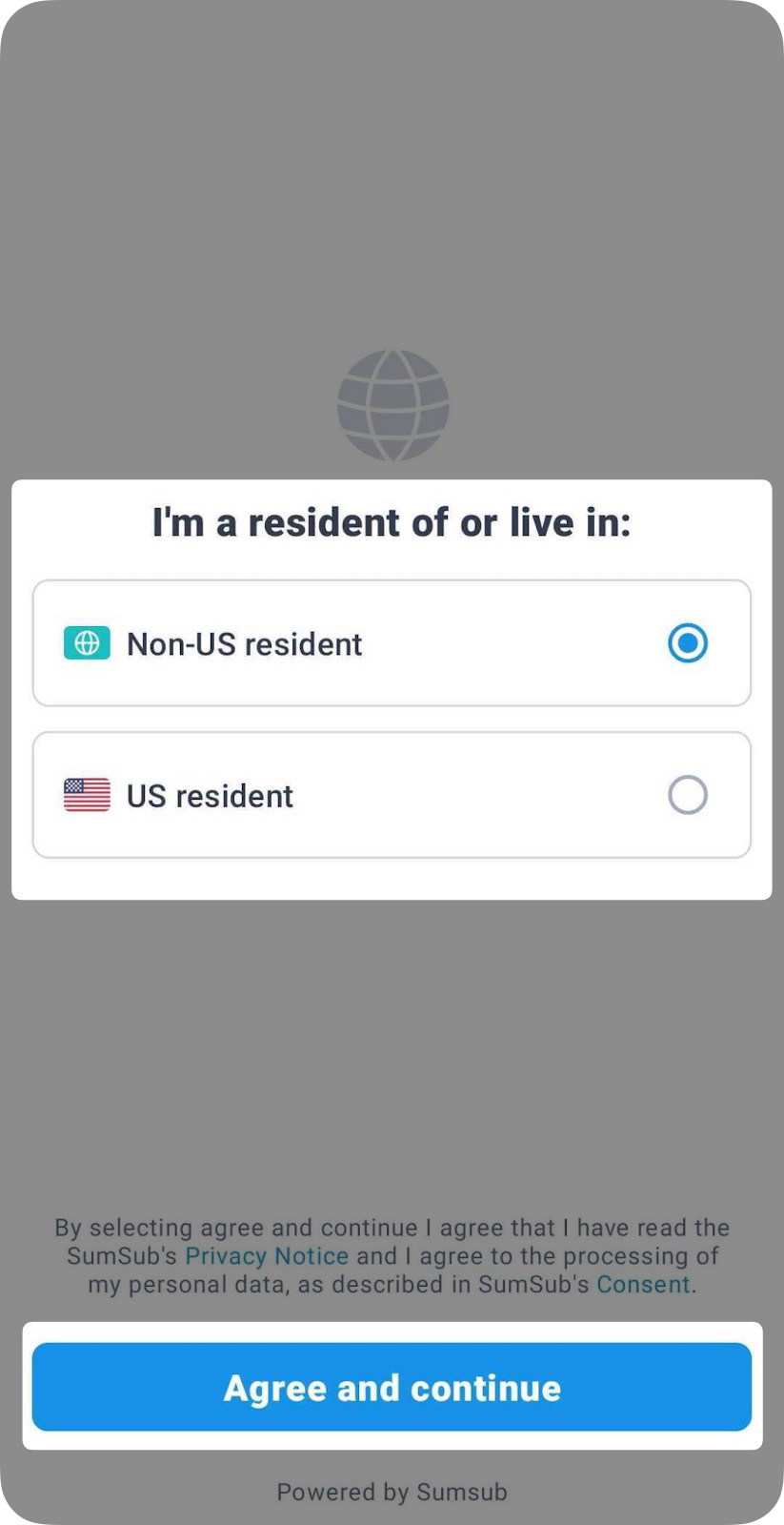
7. Confirm whether you are a US or a non-US resident and tap Agree and continue.
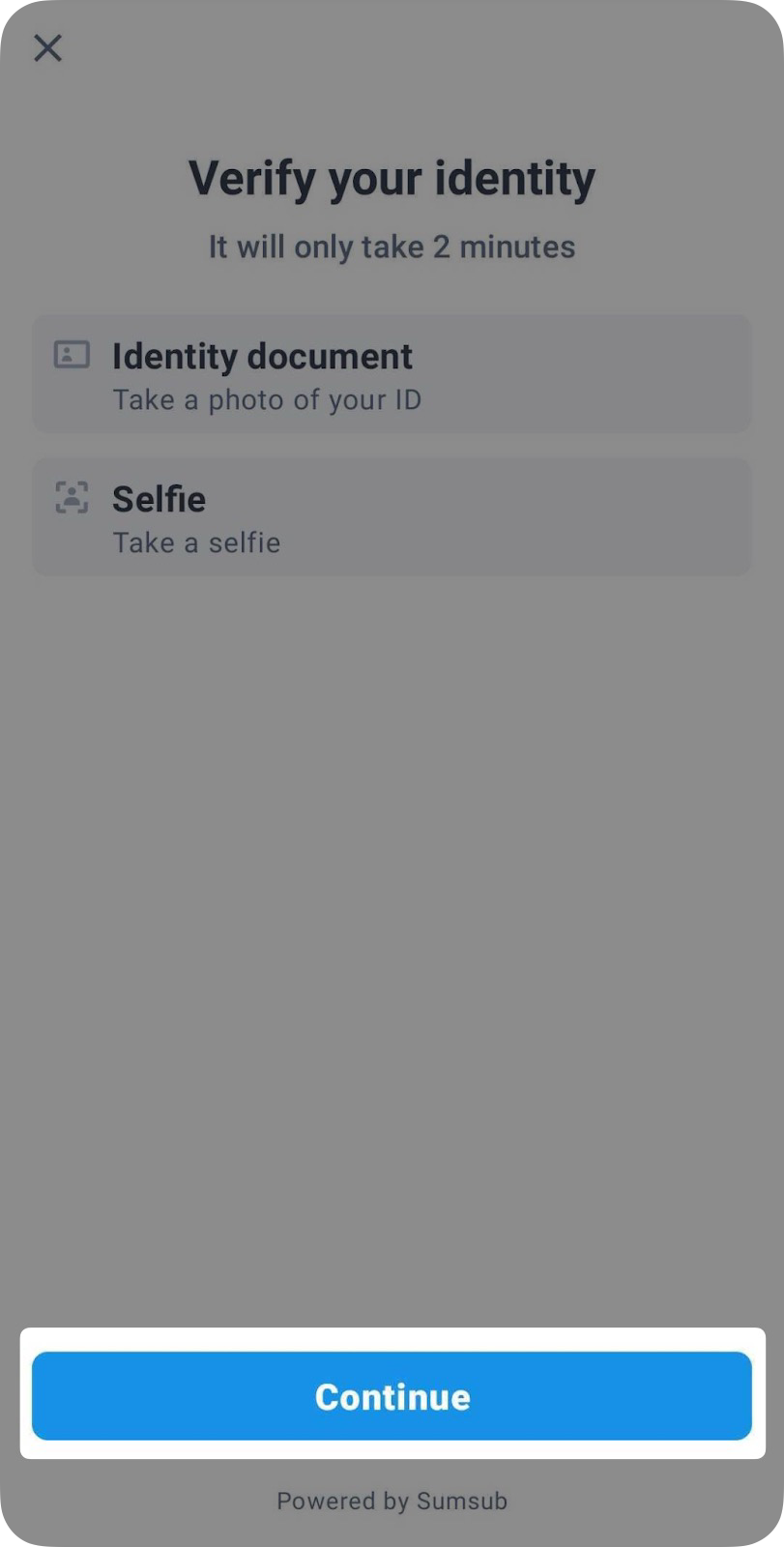
8. On the next screen, press Continue.
9. Select the country where your document was issued. Depending on the issuing country, you can choose any supported document, which may include one or more of the following types:
- Driver license
- Passport
- Residence permit
- ID card
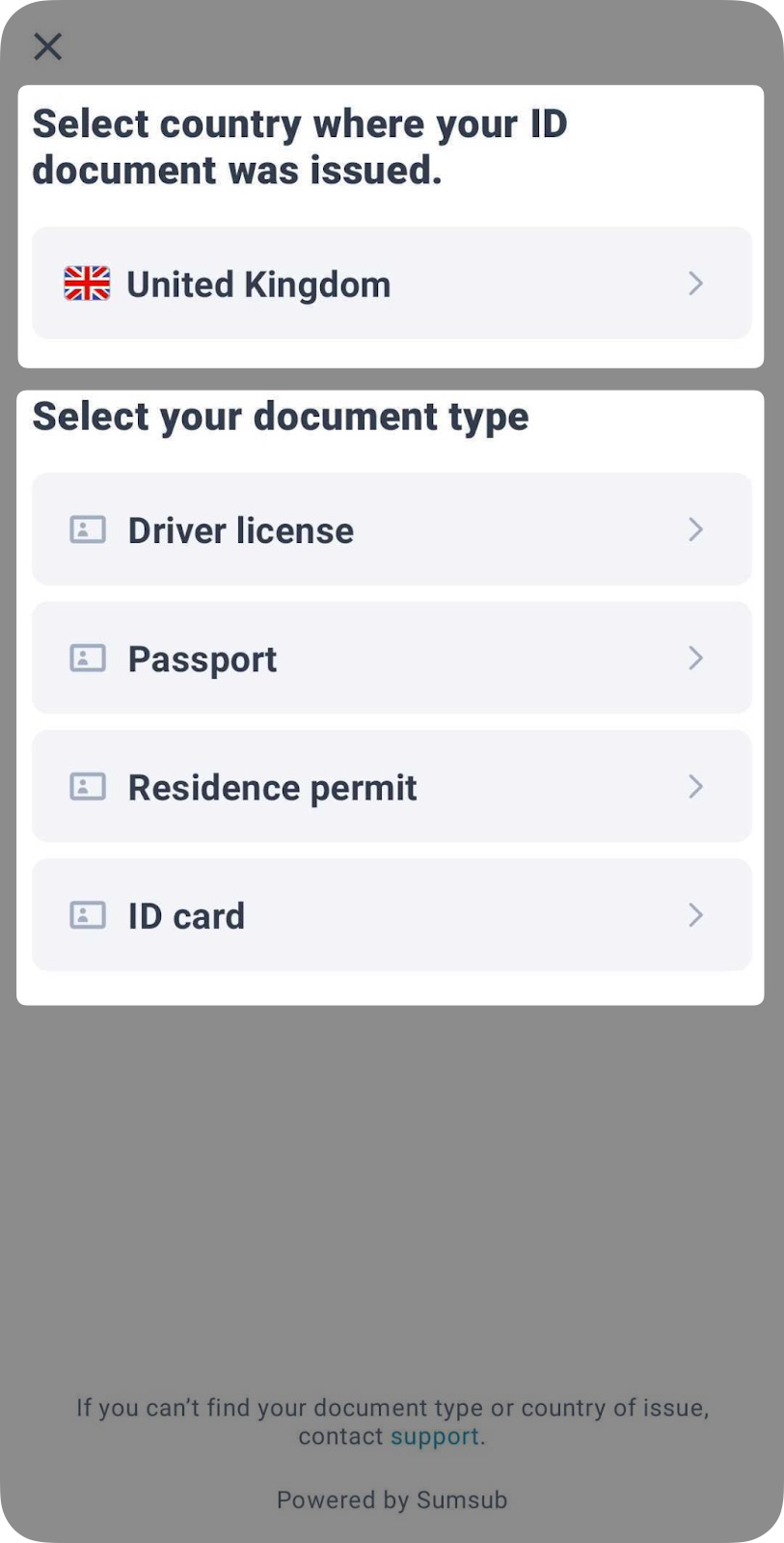
Important: European Economic Area (EEA) residents can only verify their identity with documents issued by an EEA country, excluding driver licenses.
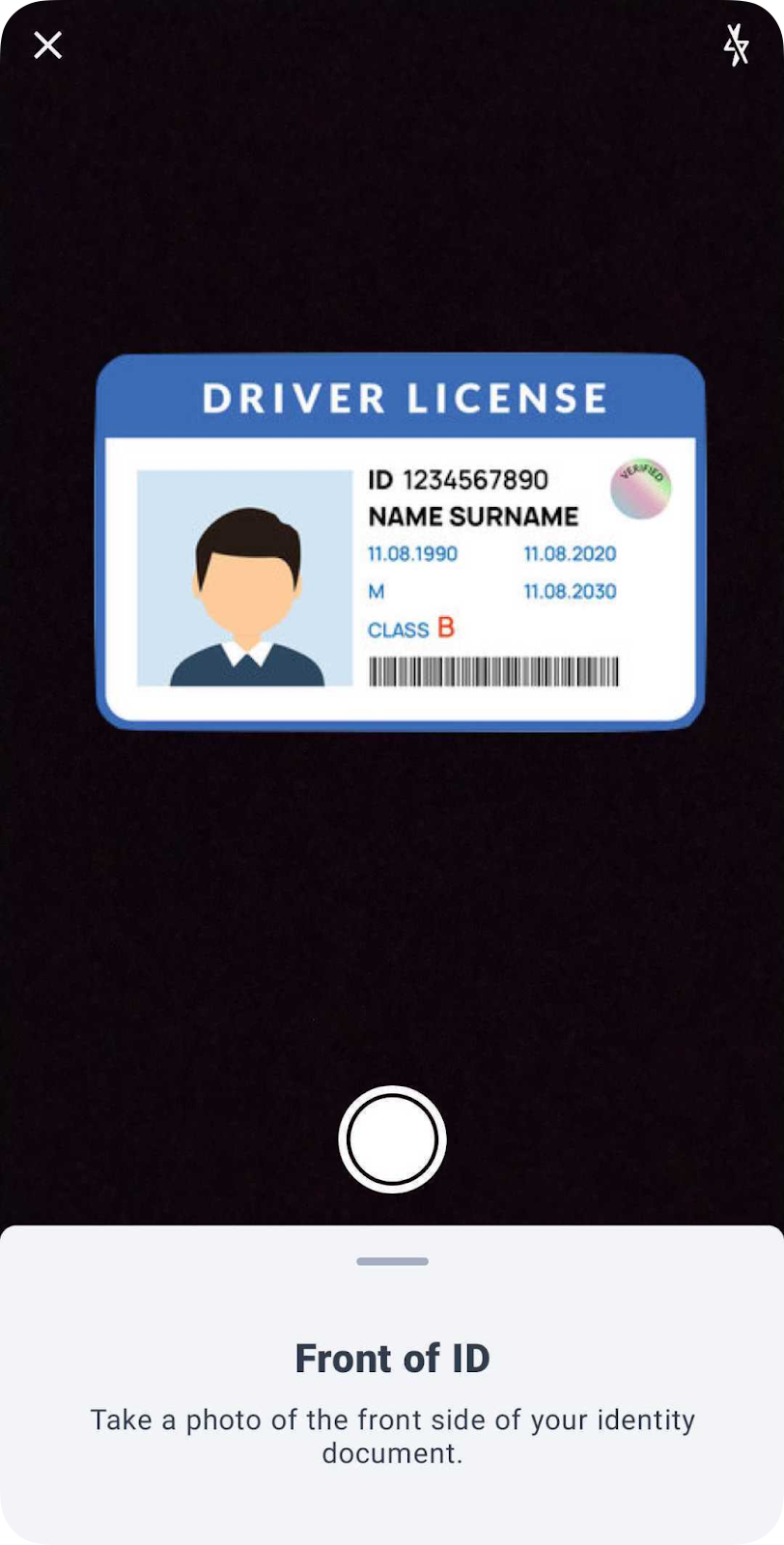
10. Take a photo of your identity document. For certain document types, you may need to provide both the front and the backside.
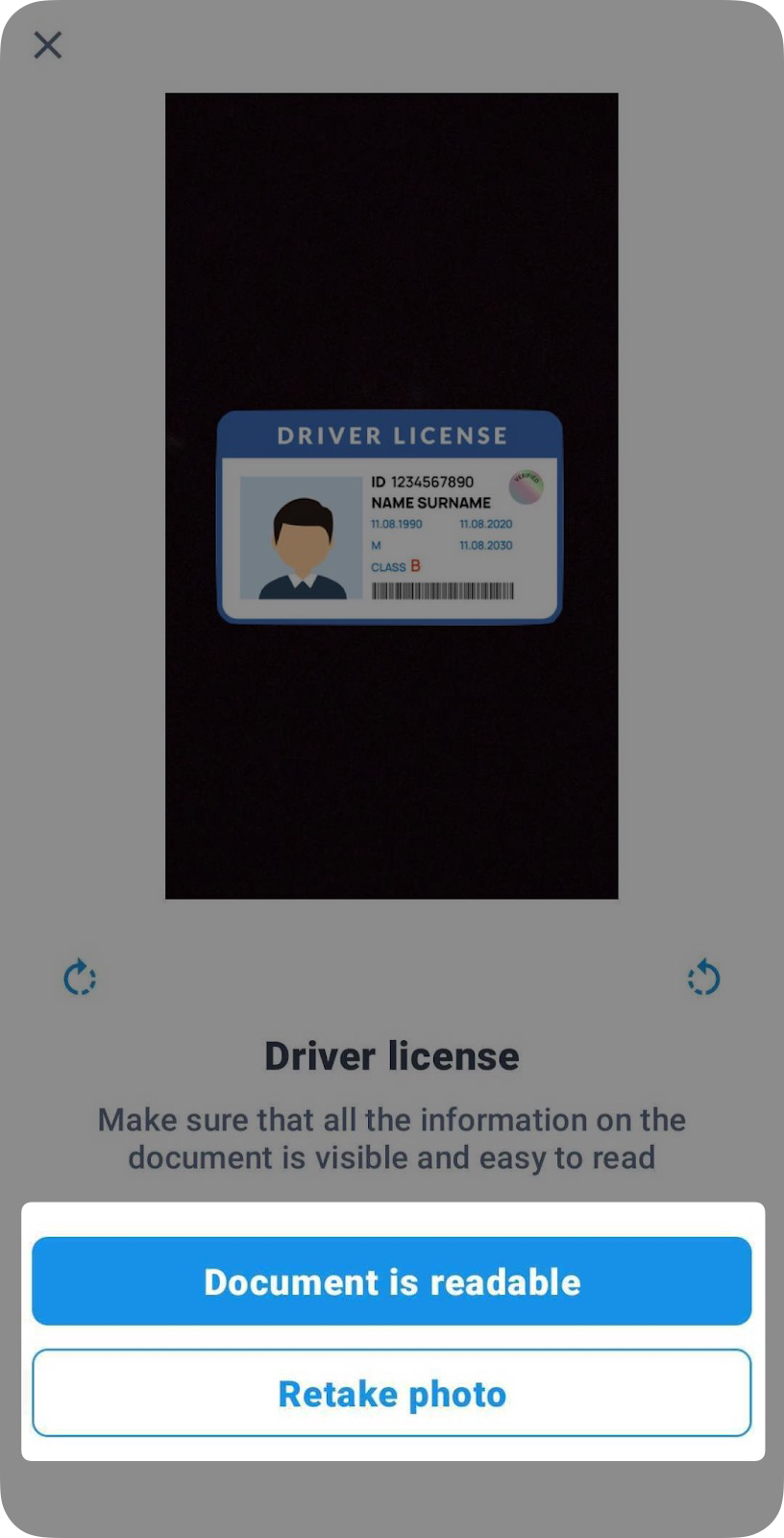
11. Make sure the details are readable, and tap Document is readable. If the image is not clear, you can take another photo by tapping Retake photo.
12. Position your face to fit the circle frame. Hold your mobile device steady while the image is being processed by our onboarding partner’s software. The selfie will be automatically saved and submitted.
To ensure your selfie is taken properly, please follow these guidelines:
- You are in an area with good lighting
- Your entire face is visible
- You have a neutral facial expression
- There is no glare or blur while taking the selfie

The review of your submission usually takes a few minutes. However, in rare cases, it may take up to one business day.
You will receive an email and an in-app notification with the outcome of your application.
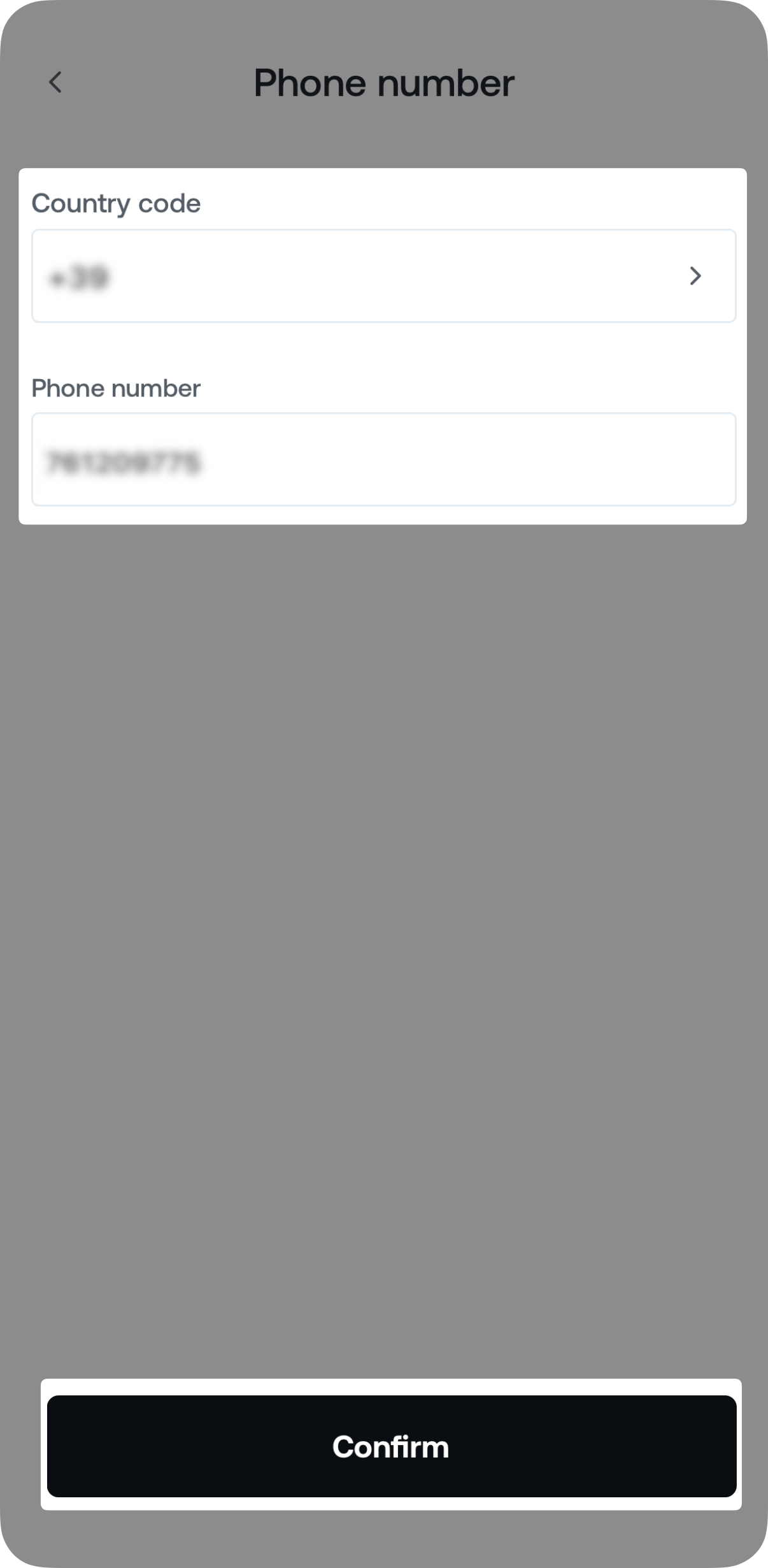
13. Once you submit the required ID document photos and selfies, you will be asked to verify your phone number.
To do that, enter your country code and phone number, then tap Confirm.
14. Enter the 6-digit security code sent via SMS to your phone.
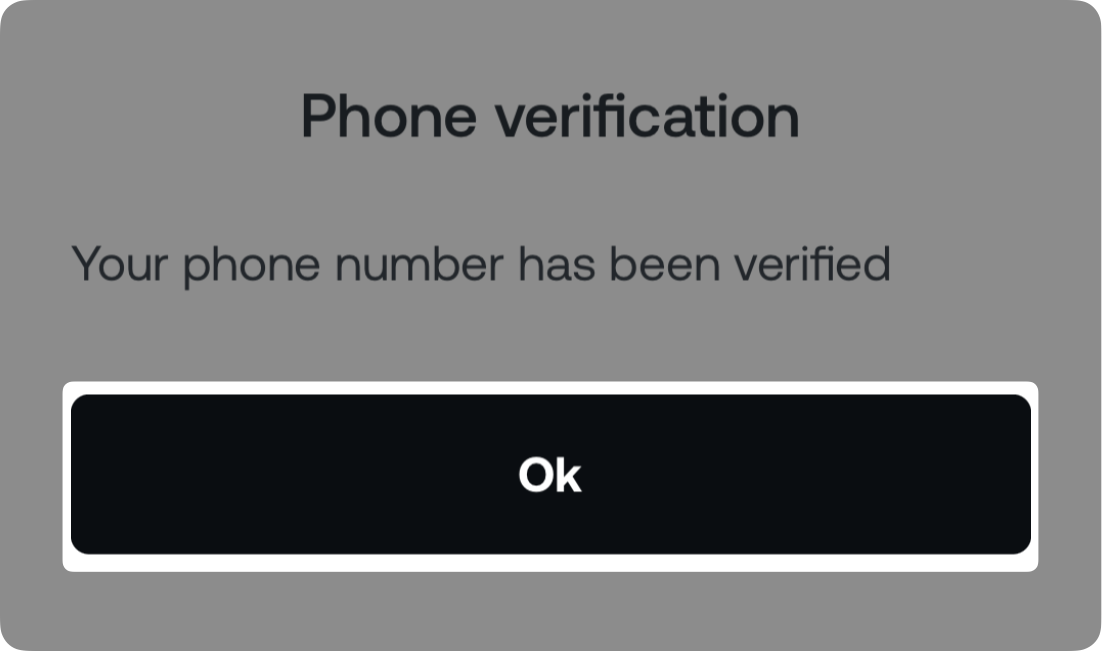
Upon successful completion of these steps, you will see an on-screen confirmation.
Supported characters
Ensure that the personal information you enter is within the following parameters:
| Name (First & Last), City: | Postal Code: | Street Address: | |
| Alphabet | Any alphabet (lower/upper case) | Any alphabet (lower/upper case) | Any alphabet (lower/upper case) |
| Digits | Not allowed | 0-9 | 0-9 |
| Special Characters | ' - | - | " , . & @ / ' # ^ ( ) - |
| Min Length | 1 | 1 | 1 |
| Max Length | unlimited | unlimited | unlimited |
3. How to complete Address Verification
Depending on the circumstances, you may also need to verify the residential address you entered during the Personal Information section. To do so, you must upload a supporting Proof of Address document by following the step-by-step instructions provided below, which are also available as a video guide here.
The information you provide will solely be used for Identity Verification purposes, and your data is always encrypted and securely stored in our system.
Depending on the document’s type, it must be issued within the last 3 to 12 months and contain the following:
- Your first and last name.
- Your full address.
- Issuing authority details and logo.
List of currently supported documents by our KYC partner
- Utility bill - water, gas, electricity, phone, internet, TV, or other (3 months)
- Bank statement or letter (3 months)
- Government agency letter or notification (12 months)
- Voter registration certificate (12 months)
- Tax assessment (12 months)
- Registration sheets/Vehicle certificate (12 months)
- Mortgage payment (3 months)
- Real estate agency rent bill (6 months)
- Employer address confirmation/Home purchase deed (6 months)
Via the web platform
1. Log in to your Nexo account and click Verify your account.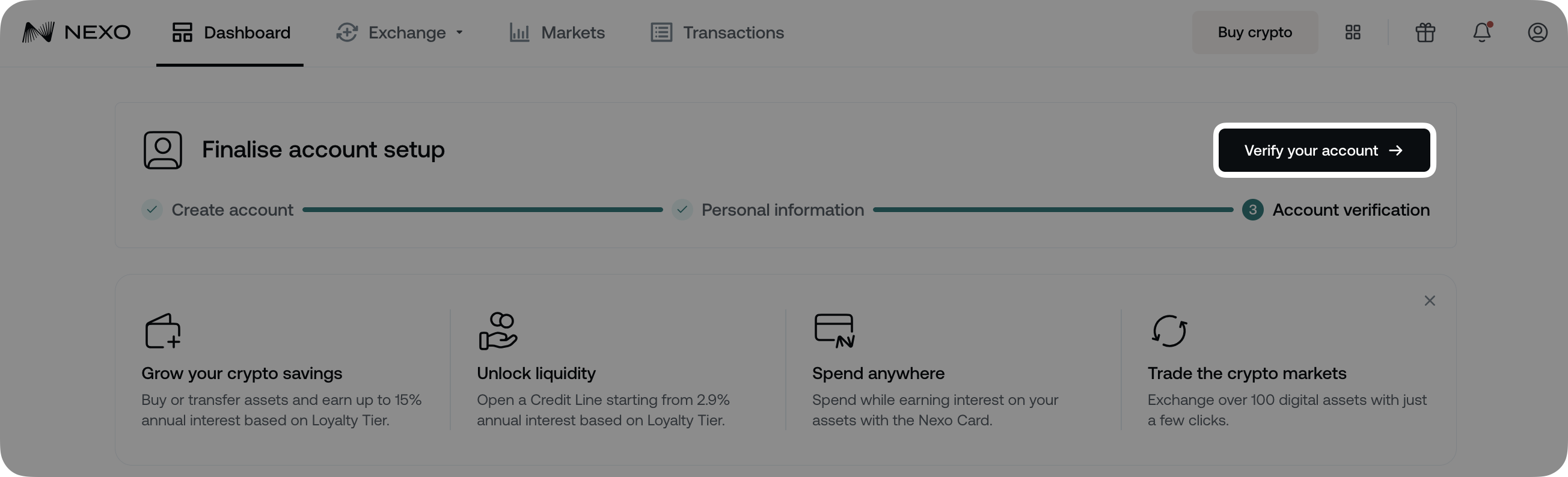
2. Click on Verify address.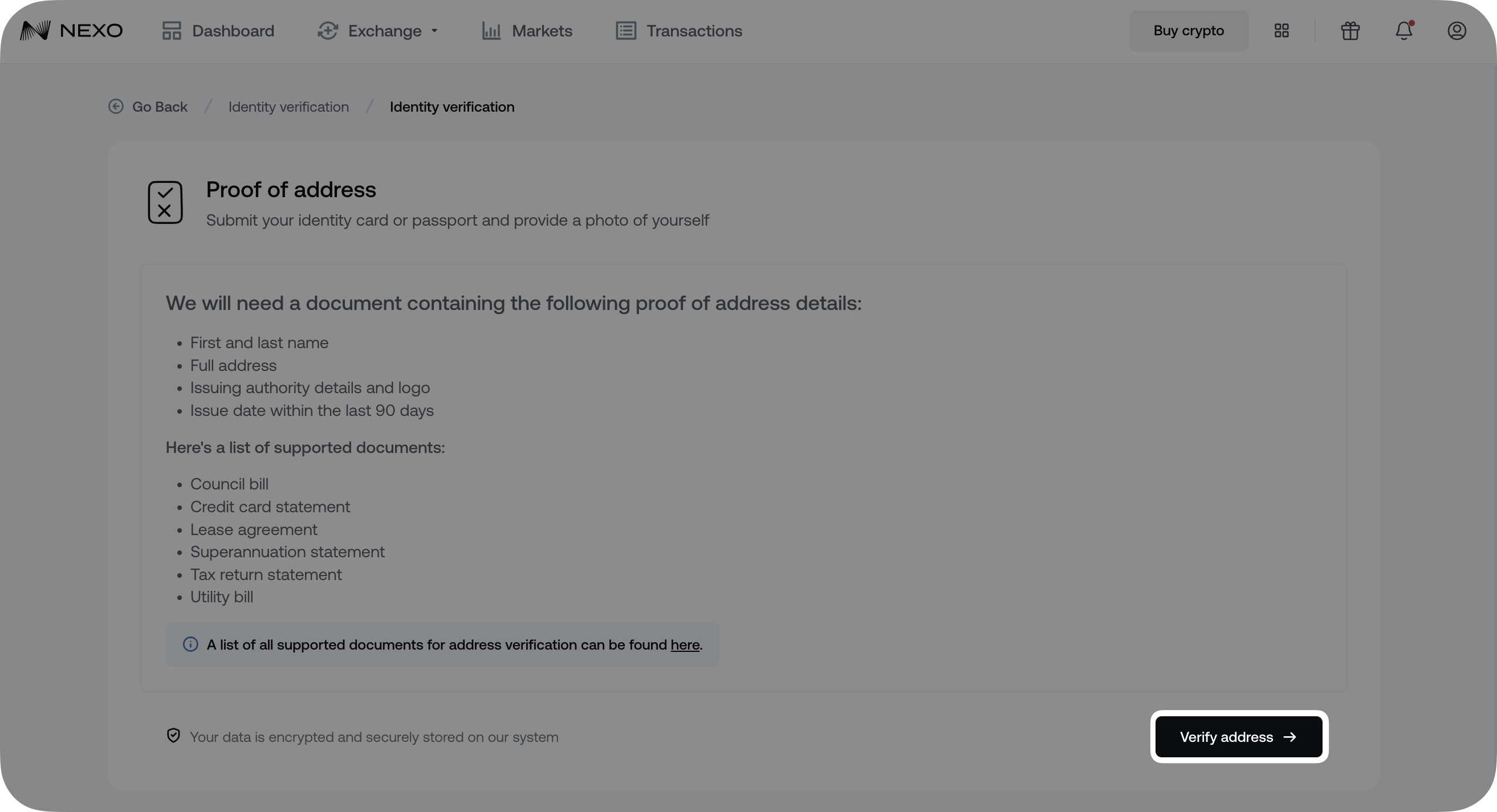
3. From the available options, select the type of document you will be submitting, upload your submission, and press Continue. You can upload an original PDF digital document or a photo of a physical one.
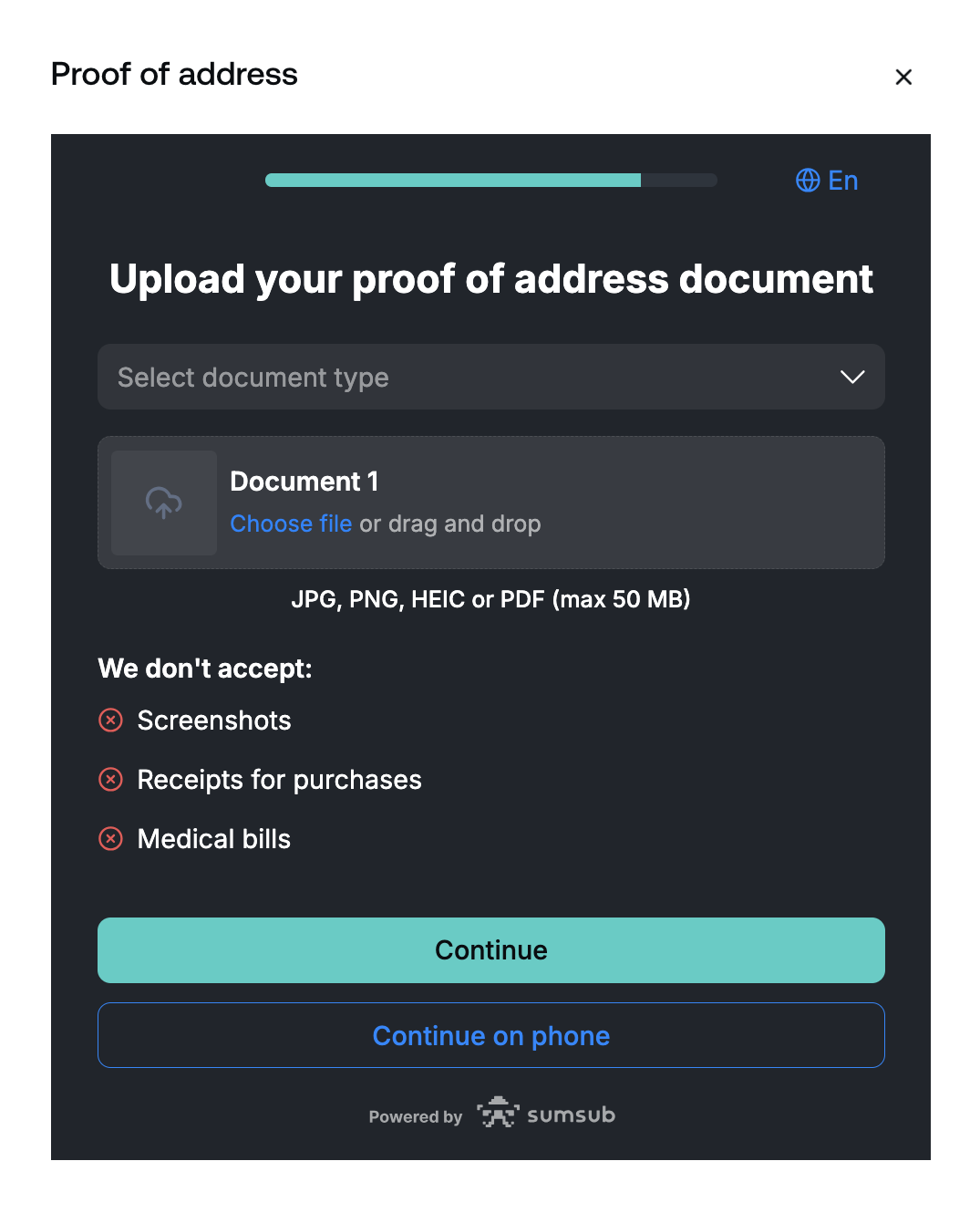
Keep in mind that we do not support screenshots of documents as valid submissions.
Once submitted, your document is usually reviewed in a few minutes, but on some occasions it may take up to 1 business day. We will notify you via email and in-app notification once the document is approved.
Via the mobile app
1. Log in to your Nexo account and tap Verify your address on your Dashboard screen.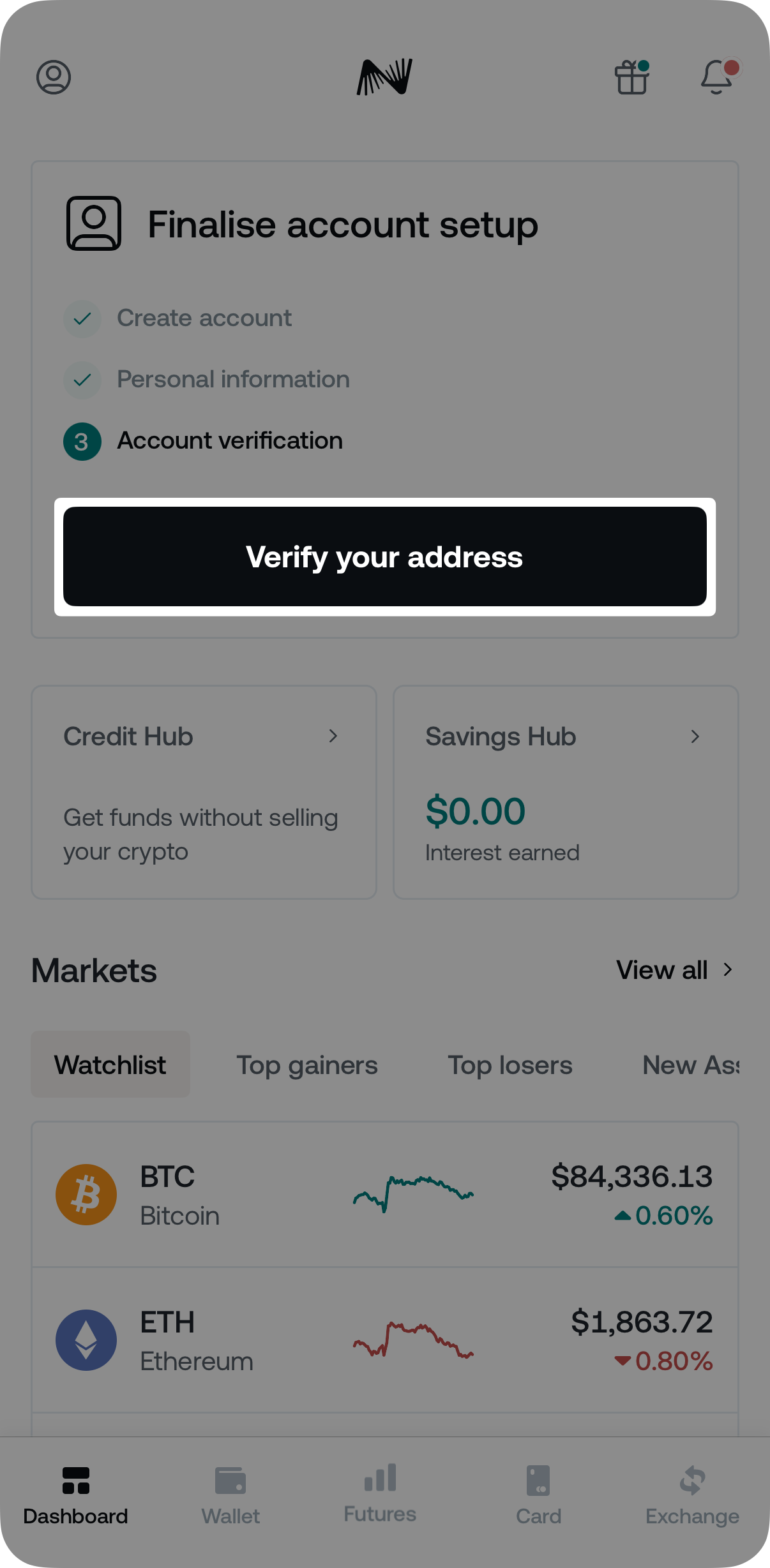
2. Review the supported document types and the information they must contain, then tap Continue verification.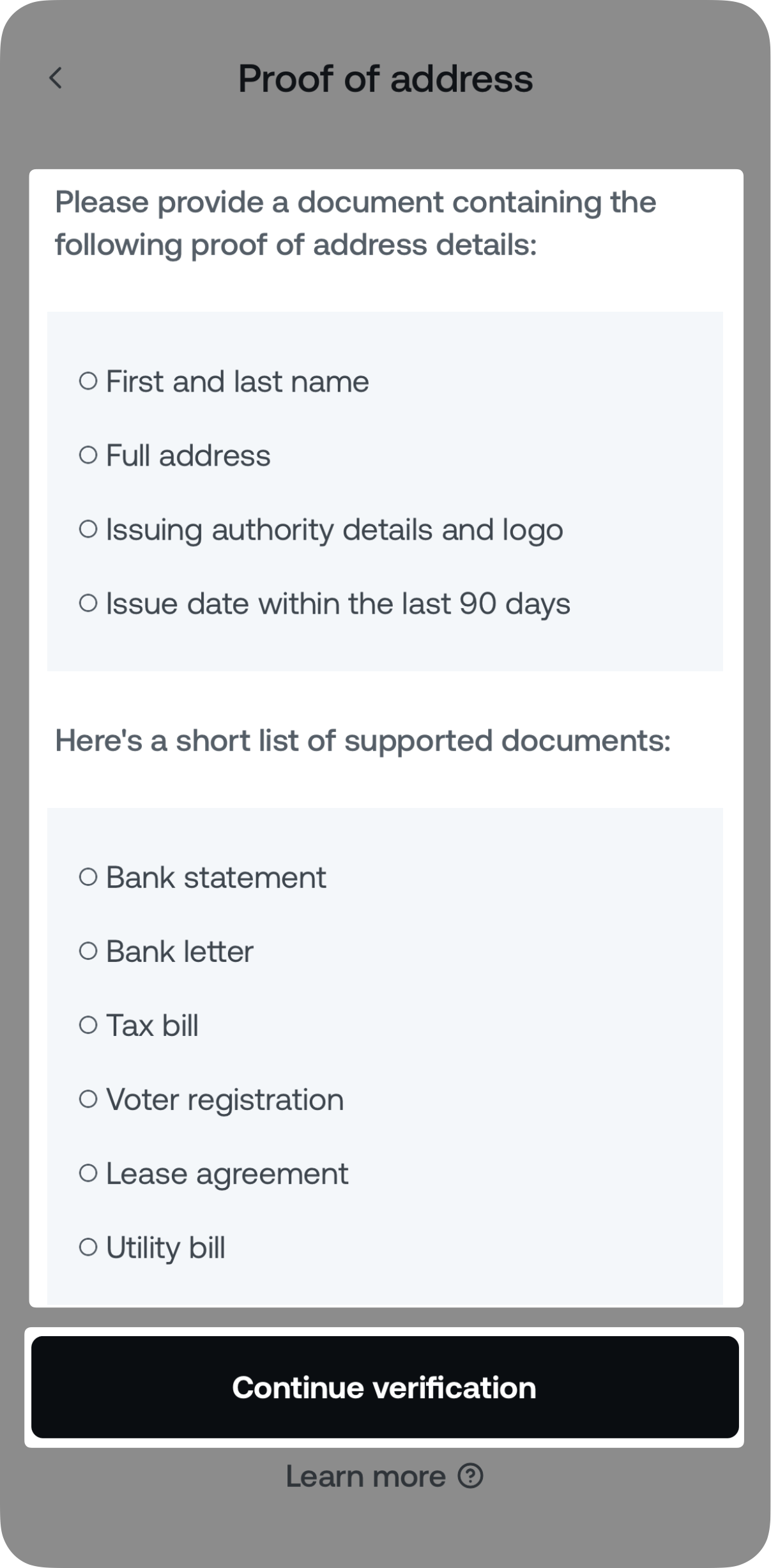
3. Follow the on-screen instructions to upload a file of your document or take a live photo.
Once submitted, your document is usually reviewed in a few minutes, but on some occasions it may take up to 1 business day. We will notify you via email and in-app notification once the document is approved.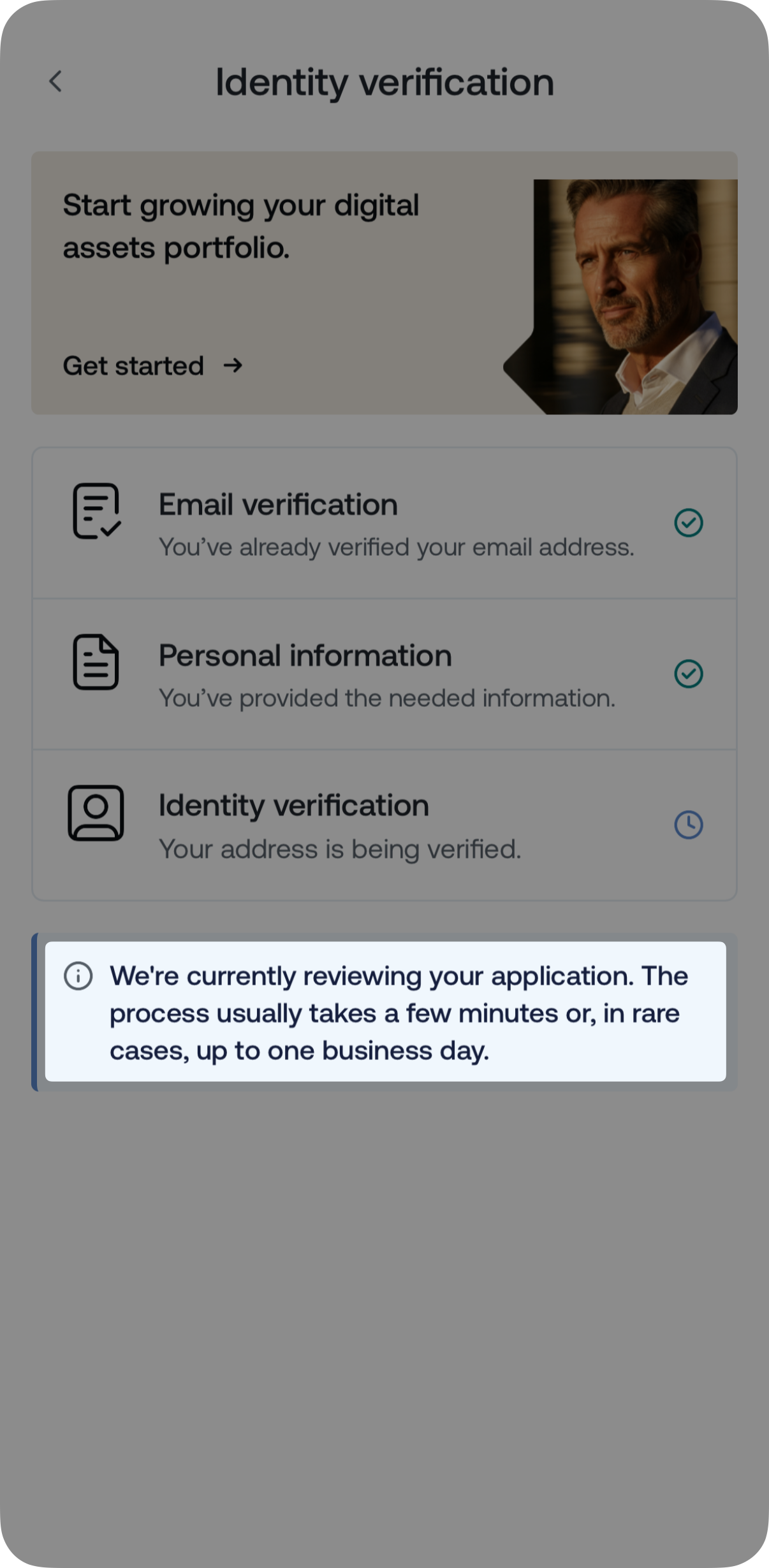
4. We will notify you via an in-app notification and email once the document is approved, so you may start your Nexo journey as soon as possible.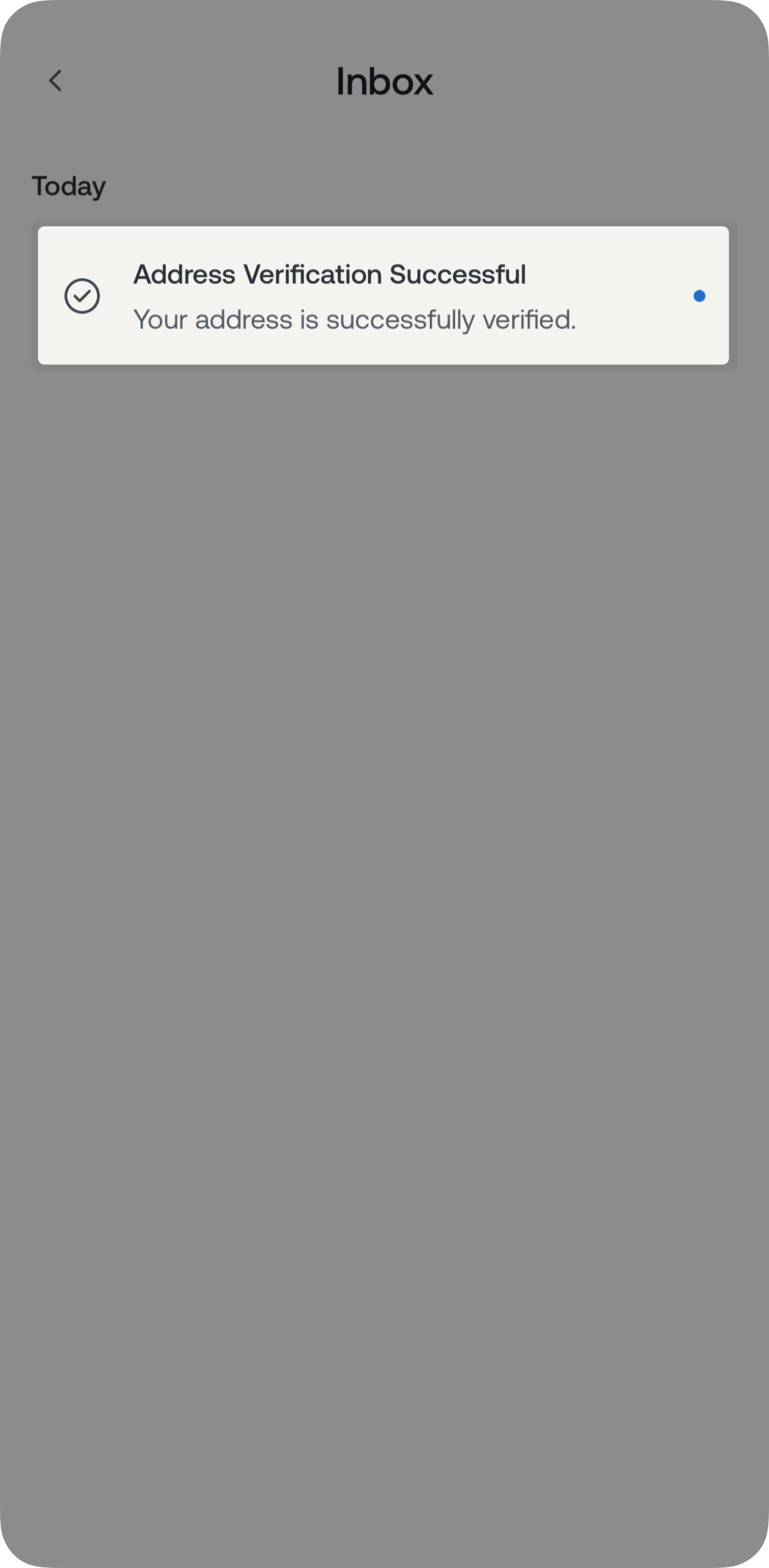
4. Important notes
- Creating a Nexo account is unavailable to clients residing in jurisdictions in which we do not operate, as well as residents of the United Arab Emirates.
- Clients can only hold one personal Nexo account.
- Clients can only hold one corporate Nexo account per company. Those with multiple companies may open a separate corporate account for each, provided the full onboarding process is completed for each account.